Configure due date extensions
Overview
Instructors can turn due date extension requests on or off for a course and set how many pending and approved requests each student may have during the term.
Student and teaching-team workflows after configuration are covered in Review due date extension requests and Request a due date extension.
Before you start
- You must be on the teaching team.
- The Due Date Extensions item appears under Course Settings only when the feature is enabled for your organization/course.
Open extension policy settings
- Open your course.
- Go to Course Settings.
- Select Due Date Extensions in the sidebar.
Enable requests
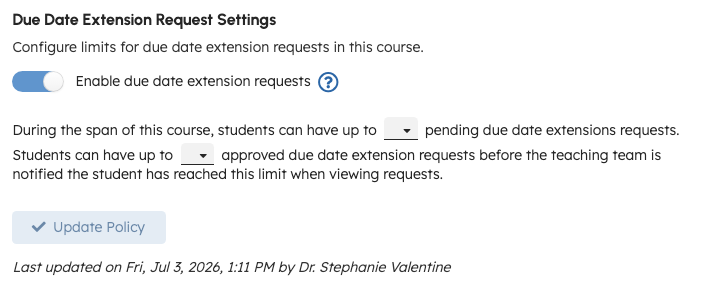
- Turn on Enable due date extension requests (toggle).
- Set limits shown in the policy section:
- Maximum pending requests per student during the course.
- Maximum approved requests per student before the teaching team is notified that a student reached the limit when viewing requests.
- Select Update Policy.
When the feature is off, the limit controls are disabled and saving records that the policy is disabled.
info
The in-product tooltip notes that students may request extensions on assignment due dates, and on reassessment due dates when reassessments are enabled for an assignment.
After you save
- The page may show Last updated metadata (timestamp and user) when available.
- Students can submit requests according to the limits you configured.
- The teaching team reviews requests under the course Due Date Extensions tab (not under Settings).
Troubleshooting
| Situation | What to try |
|---|---|
| Sidebar item missing | Confirm the feature flag or deployment enables course due date extensions. |
| Cannot save limits | Ensure the toggle is on and values are within allowed minimum/maximum shown in validation messages. |
| Students cannot request | Verify policy is active and assignment/reassessment settings allow extensions. |