Course roster overview
Overview
The Course Roster area shows who is enrolled in your course and how they are organized. From here, the teaching team can review members, adjust roles (where permitted), and—depending on course type—manage sections, groups, and course invites.
Before you start
- You must be on the teaching team (or otherwise have roster access) for the course.
- Some actions are limited by your course role (for example, only the Instructor Owner can send course invites or transfer ownership).
Open the roster
- Open your course in TeachFront.
- Select Course Roster from the course navigation.
The page title is Course Roster. The left sidebar lists the roster views available for your role and course configuration.

Course Members
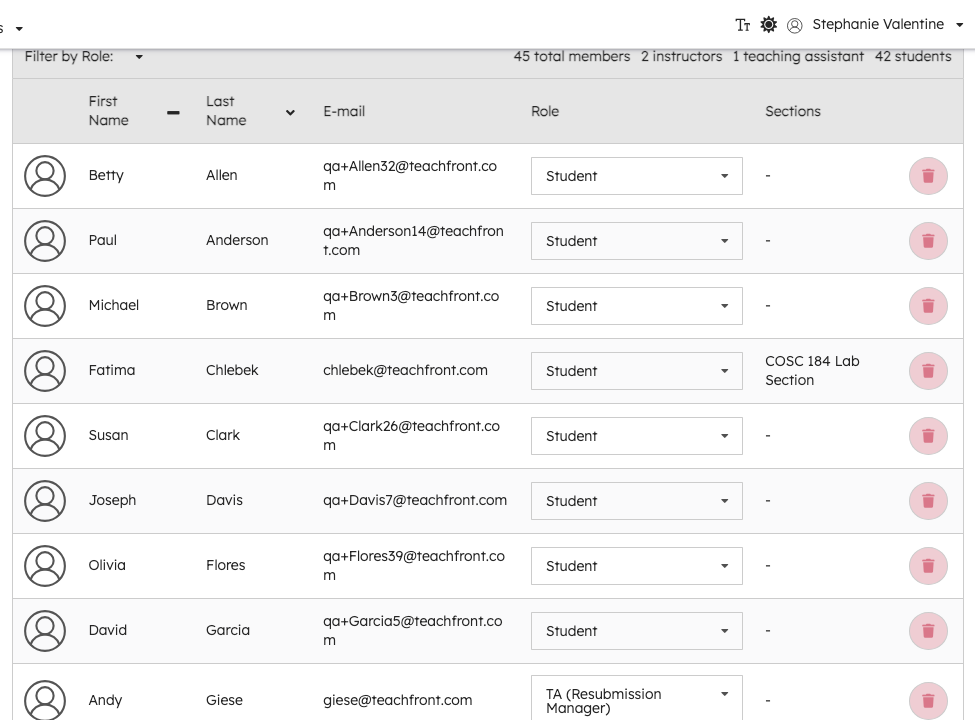
Course Members is the default roster view. It shows a table of enrolled users with:
- Profile (photo and name)
- Role (for example Student, TA, Instructor)
- Sections (when sections apply to the course; otherwise this column may show “-”)
Filter and sort
- Use Filter by Role to narrow the list (for example Students, Teaching Team, Instructors, Teaching Assistants, or All Members).
- Column headers support sorting where shown in the UI.
Role counts (such as total members, instructors, or students) may appear above the table for the current filter.
Change a member’s role
Instructors with permission to manage the roster can change another member’s role from the Role dropdown on that row.
Available roles depend on the member’s current role and whether the course is paid or free. Teaching-team roles can include labels such as TA, TA (Resubmission Manager), Instructor, and Hidden Instructor. Student rows typically show Student.
Instructor Owner transfer: only the current Instructor Owner can promote another member to Instructor Owner. TeachFront asks for confirmation before transferring ownership; the previous owner becomes an Instructor after a successful transfer.
Unenroll a member
Where the UI offers an unenroll action, TeachFront asks you to confirm before removing someone from the course.
Sections (paid courses)
For paid courses, instructors may see a Sections area in the roster sidebar.
- Add Section creates a new section (instructors).
- Each section name opens a section roster filtered to members in that section.
- Instructors can Edit a section from its roster view.
- Students may see a Leave action on joinable sections they belong to.
Section membership can affect which students appear when you open a section-specific roster.
Sections are tied to paid-course roster organization. Free courses may not show the same section sidebar entries.
Groups
When your course has group sets, the roster sidebar lists Groups with each group set by name.
- Teaching-team members with access can use Add Group Set to create a new set.
- Opening a group set shows the groups and members configured for that set.
Group roster details are managed within each group set view (not on the main Course Members table).
Course invites
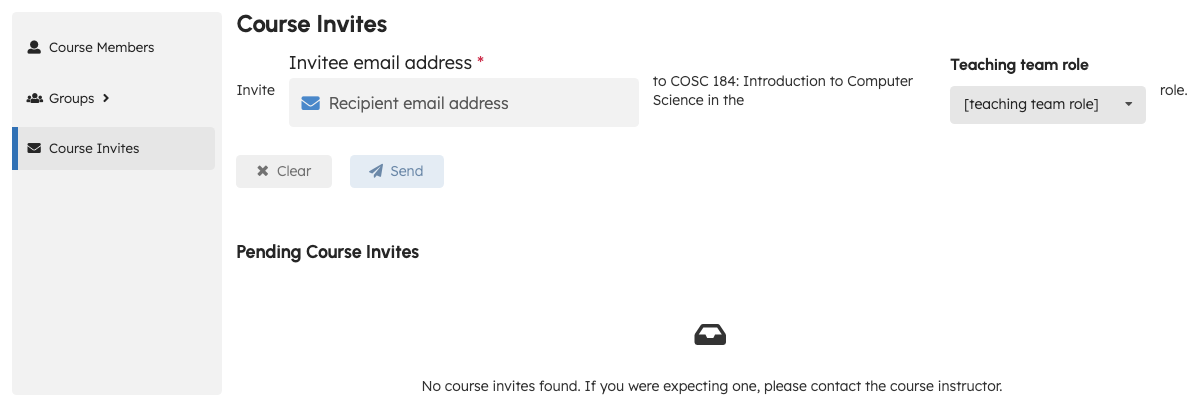
Course Invites appears in the roster sidebar for the Instructor Owner.
From this view you can:
- Enter a TeachFront user email and select a role for the invite.
- Send the invite.
- Review Pending Course Invites and take actions shown in the list (for example cancel a pending invite).
Invites are for accounts that already exist in TeachFront. Students who join with a registration code use the student enrollment flow instead (see Join a course).
Registration codes (related setting)
Students can join with a registration code you share from course settings (not from the roster table itself). The code is configured under course settings as Course Registration Code when term and course number are set.
If you use paid-course membership slots, students may need to complete payment after entering the code before they can access content.
What students see
Students with roster access typically see a simpler sidebar (for example Course Members and, on paid courses, sections they belong to). They do not manage teaching-team roles or send course invites.
Troubleshooting
| Situation | What to try |
|---|---|
| Cannot change someone’s role | Confirm you are an instructor with roster permissions; some roles are restricted on paid courses. |
| Course Invites missing | Only the Instructor Owner sees this item; transfer ownership if appropriate. |
| Student not on roster | Confirm they finished joining (registration code or accepted invite) and check course settings for enrollment limits. |
| Sections not listed | Sections apply to paid-course roster organization; verify course type and your role. |