Billing settings (paid courses)
Overview
Billing under Course Settings applies to paid courses. It covers how students pay for access and how instructors manage membership slots so enrollment stays within purchased capacity.
Product direction: access type and payment lock belong on the main Course Settings form. Until engineering consolidates the UI, you may still configure some access-type options here on the Billing page.
Access type and payment lock may appear on the main Course Settings tab or here under Billing, depending on your TeachFront version.
Free courses use different access settings; billing controls may be limited or hidden.
Before you start
- You must be on the teaching team (typically the instructor owner for payment upgrades).
- The course must use a paid access type for billing-specific actions to appear.
Open billing settings
- Open your course.
- Go to Course Settings.
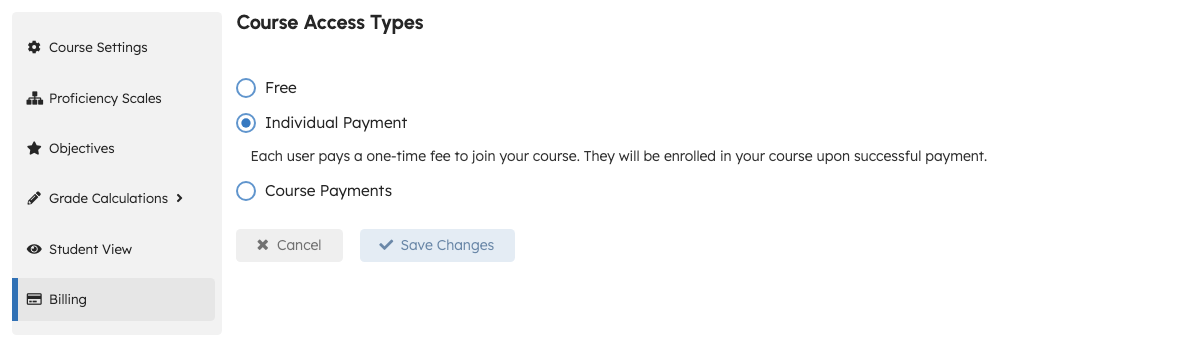
- Select Billing in the sidebar.
What you can configure
Exact options depend on course access type. The page may include:
- Access type or payment model choices (for example individual payment vs alternatives shown in the UI).
- Membership slots — purchase or allocate slots so students can join with a registration code without exceeding capacity.
- Checkout flows to upgrade or pay for additional slots (may open an embedded payment window or redirect to Stripe, depending on configuration).
When students report payment or lock issues, confirm they finished checkout in the payment window and are signed into the account they used to pay.
Membership slots and roster
When slots are limited, students may see errors if the course is full. Monitor Course Roster enrollment and adjust slots on the billing page as needed.
Troubleshooting
| Situation | What to try |
|---|---|
| Billing not in sidebar | Confirm the course is a paid access type, not free. |
| Checkout does not complete | Allow pop-ups; retry payment; confirm the student completes checkout before returning to the course. |
| Student cannot join — full course | Add membership slots or remove inactive enrollments from roster. |