Review due date extension requests
Overview
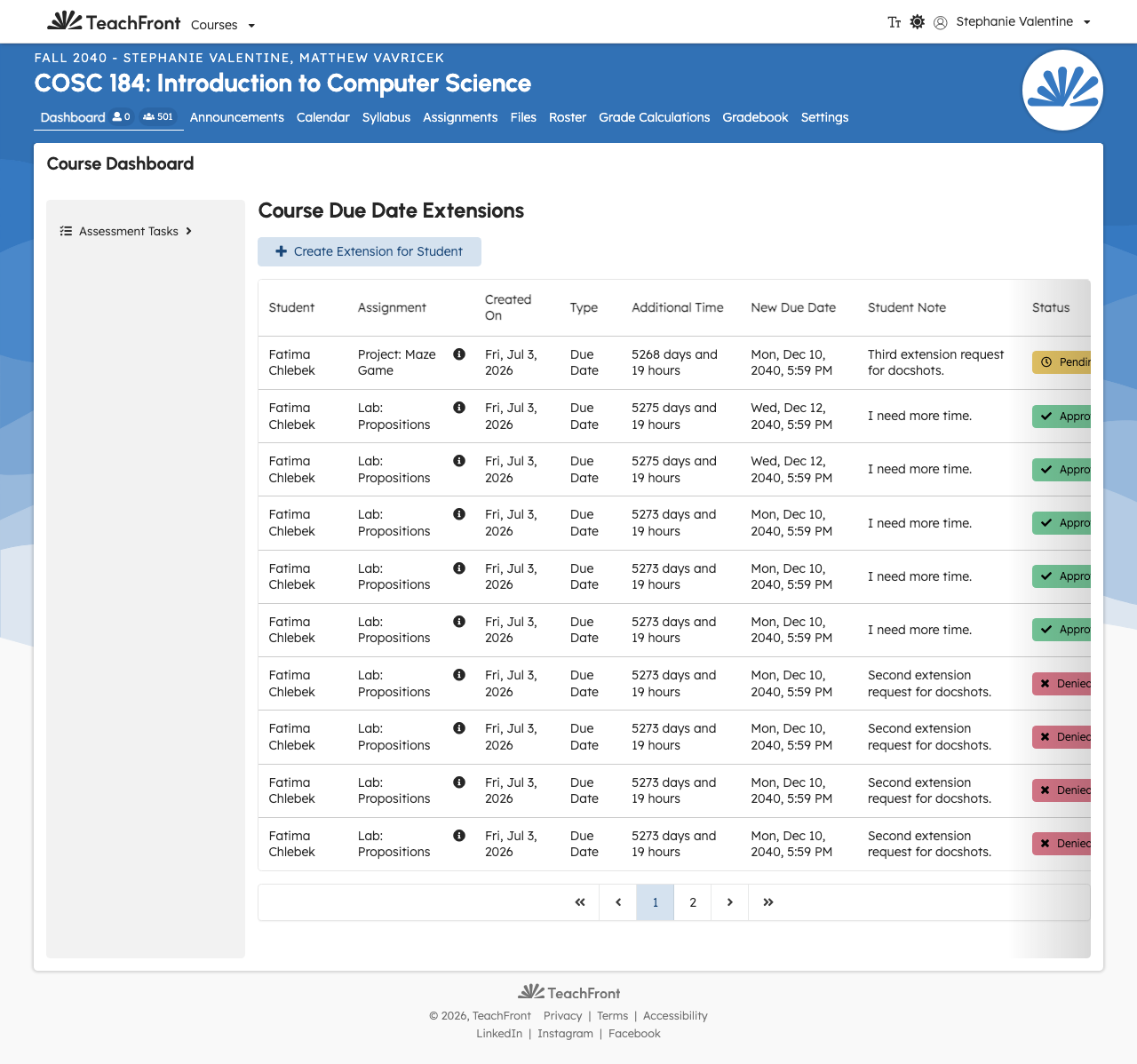
TeachFront lets students request due date extensions and lets the teaching team review them. This article covers the instructor/teaching-team workflow for reviewing requests and managing extensions.
Before you start
- You must be an instructor or on the teaching team for the course.
- Due date extensions must be enabled for the course.
Review student requests
- Open your course in TeachFront.
- Open Due Date Extensions.
- Use filters/search (if available) to find requests that are Pending.
- Open a request to review the student's requested date and note.
- Choose one of the actions below.

Approve a request
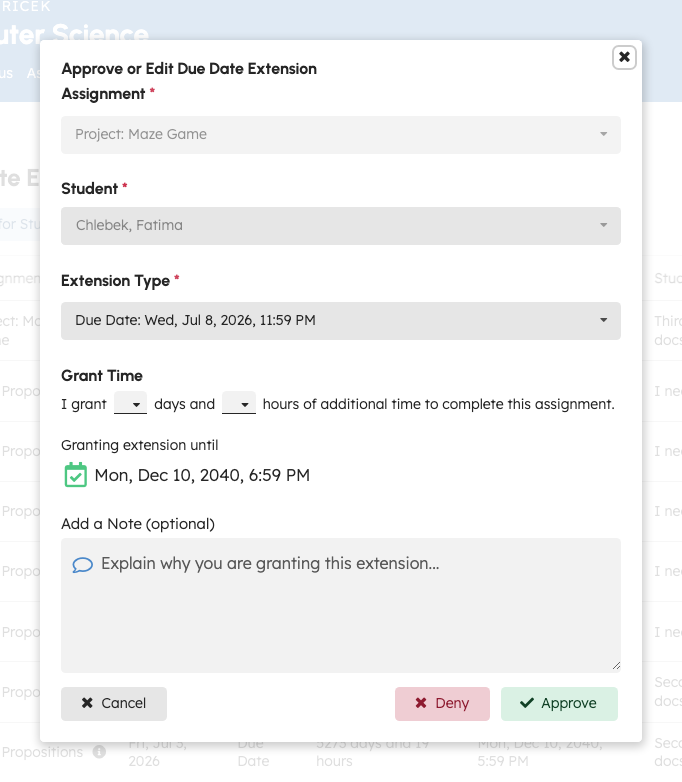
- Open a Pending request.
- Select Approve (or the equivalent review action).
- Confirm the final due date.
- Add an instructor note (recommended).
- Save.
Expected result
- The request status updates (for example, Approved).
- The UI shows the final due date and instructor note on the status/details view.
- The approved extension is honored wherever submission eligibility is computed.

Edit an extension
You can adjust an extension after it's created (for example, change the final due date or note), depending on your course policy and the extension's current state.
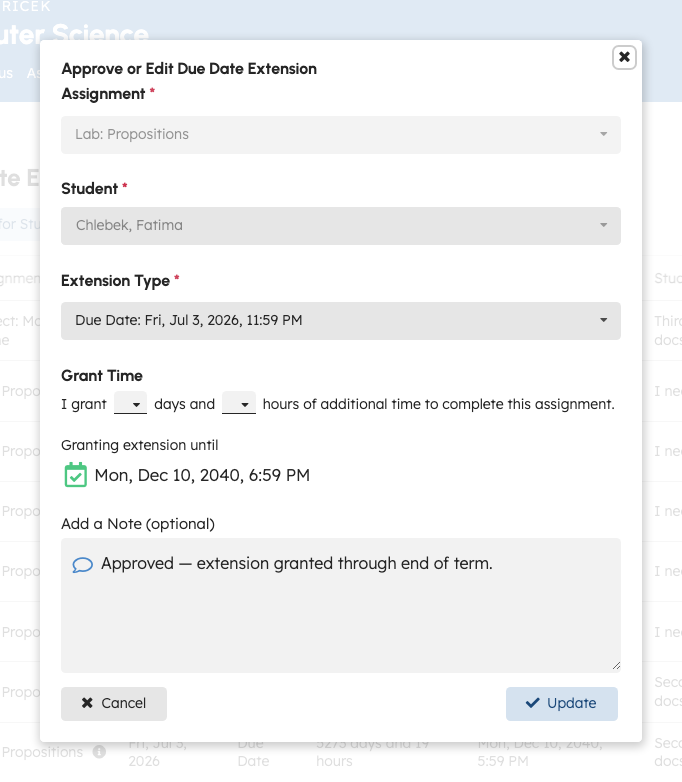
- Open Due Date Extensions.
- Open the extension you want to change.
- Select Edit.
- Update the final due date and/or instructor note.
- Save.
Expected result
- The updated extension is reflected anywhere the effective due date is shown/used.

Create an extension (without a student request)
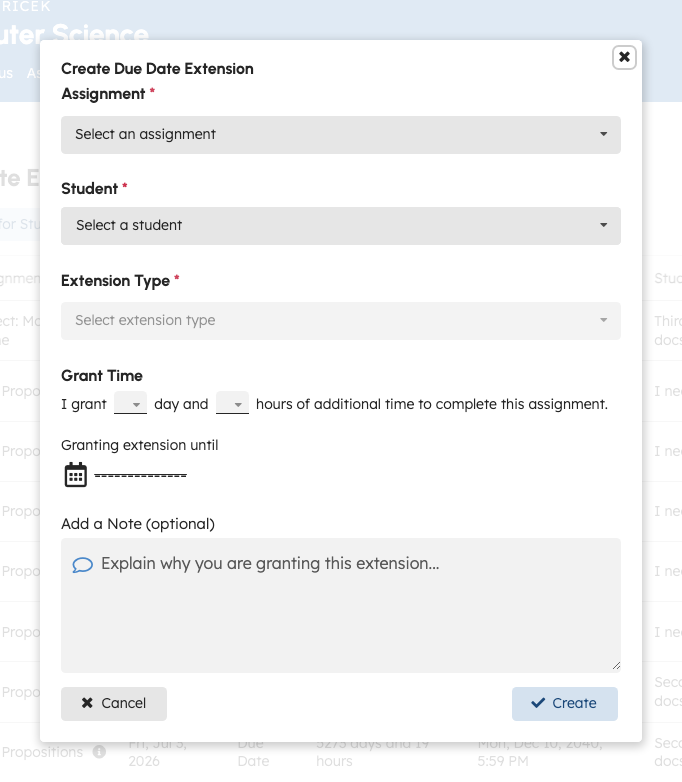
If a student can't submit a request (or you prefer to proactively grant time), you can create an extension directly.
- Open Due Date Extensions.
- Select Create extension.
- Choose the student and assignment.
- Set the final due date and add an instructor note.
- Save.
Cancel an extension or request
Review and cancel are pending-only actions.
- Open the request/extension.
- Confirm it is Pending.
- Select Cancel.
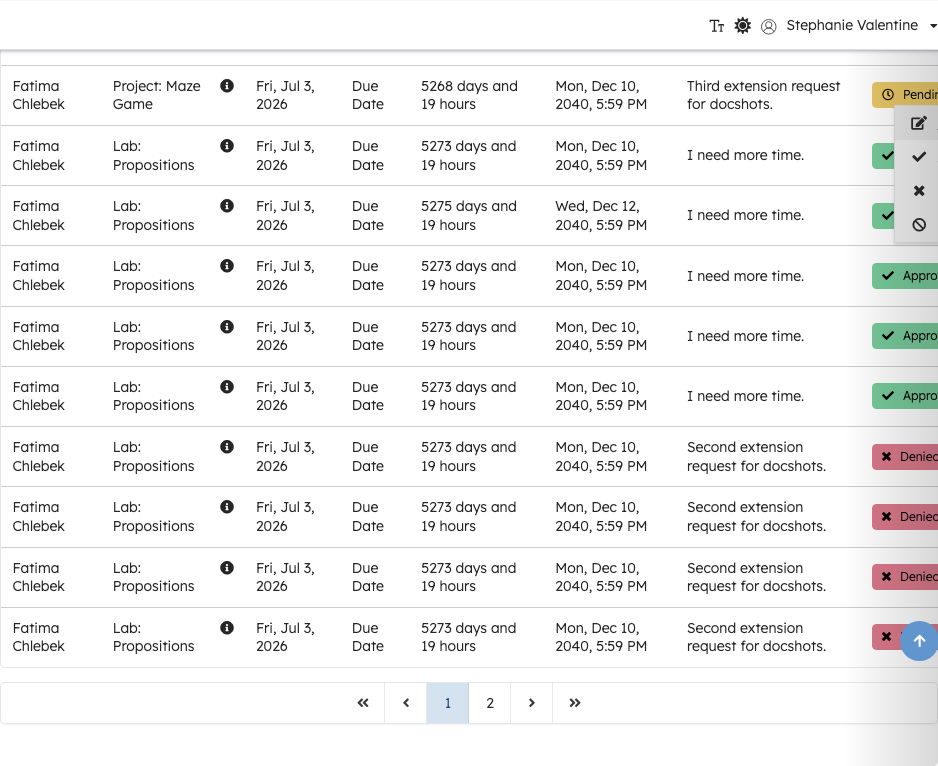

Course policy notes (limits + blocking)
Courses can set limits on how many requests/extensions a student can use. Instructors can choose whether exceeding limits blocks requests.
- If a student is over a limit, TeachFront may show an over-limit warning even when requests are still allowed.
Troubleshooting
A student says they can't submit a request
- Confirm the course policy has due date extensions enabled.
- Check whether the student is over a configured limit and whether your course is set to block requests when over-limit.
The final due date isn't visible
- Review the request status/details view. It typically shows the final due date and instructor note after you've added them.
- If those fields are missing, capture a screenshot and contact support.
The effective due date doesn't seem to apply to submission eligibility
- Refresh the page and re-check the extension details.
- If the issue persists, record:
- course
- assignment
- student
- final due date shown
- what the student sees on the submission page
- and contact support