Grade calculations overview
Overview
TeachFront Grade Calculations settings define how student work maps to final course grades. The sidebar groups three related areas:
- Grade Distinctions — the final grades you issue (for example letter grades or GPA-style values).
- Grade Benchmarks — bars based on proficiency levels students must meet.
- Grade Thresholds — the specific quantities that connect benchmarks to each distinction.
Configure them in order when setting up a new course: distinctions → benchmarks → thresholds.
Before you start
- You must be on the teaching team.
- Complete Objectives and Proficiency Scales first; benchmark and threshold pages may prompt you when prerequisites are missing.
Open grade calculations settings
- Open your course.
- Go to Course Settings.
- Under Grade Calculations, choose Grade Distinctions, Grade Benchmarks, or Grade Thresholds.
Grade Distinctions
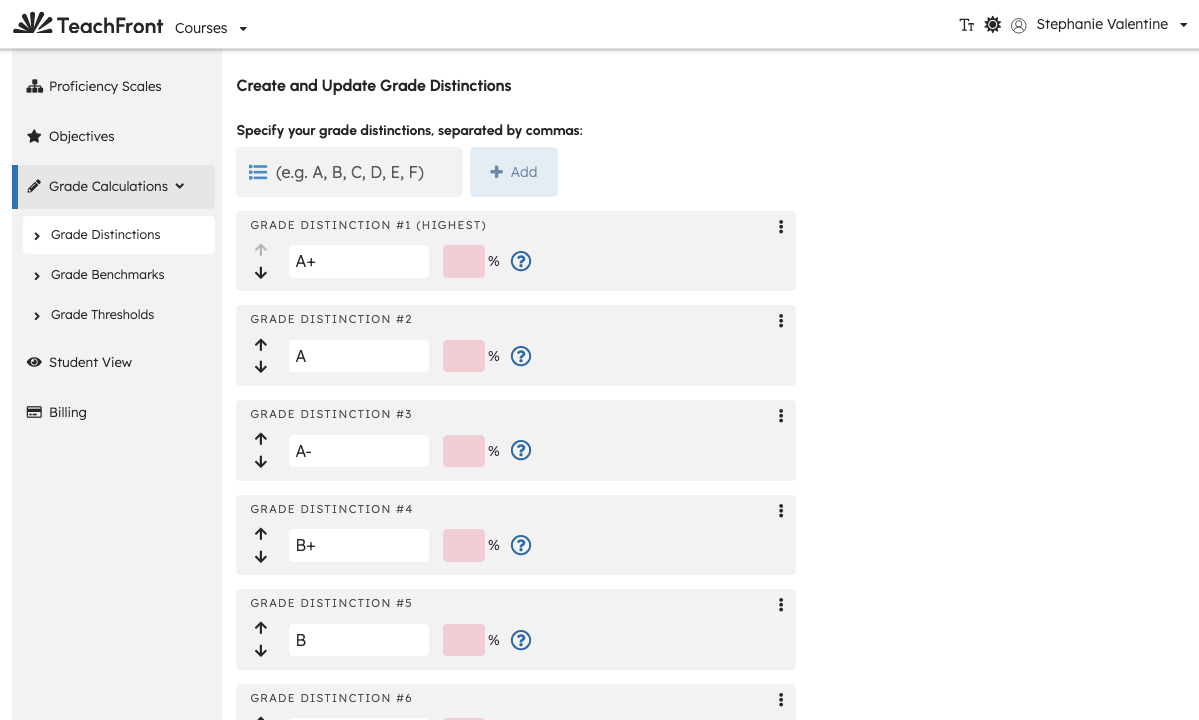
Grade Distinctions are the final grades for the term (for example A, B, C or 4.0, 3.9, 3.8).
On the Grade Distinctions page you can:
- Review the in-product explanation of distinctions.
- Create and update distinction cards (names, ordering, and related fields shown in the UI).
- Reorder distinctions when swap/move controls are available.
Save changes using the form actions on that page.
Grade Benchmarks
Grade Benchmarks describe how much proficiency-level achievement students need before a distinction applies. After you create benchmarks, you assign thresholds on the Grade Thresholds page (the benchmarks UI links there).
Use Grade Benchmarks to define benchmark groups tied to your objectives and scales. Follow validation messages if objectives or scales are not ready.
Grade Thresholds
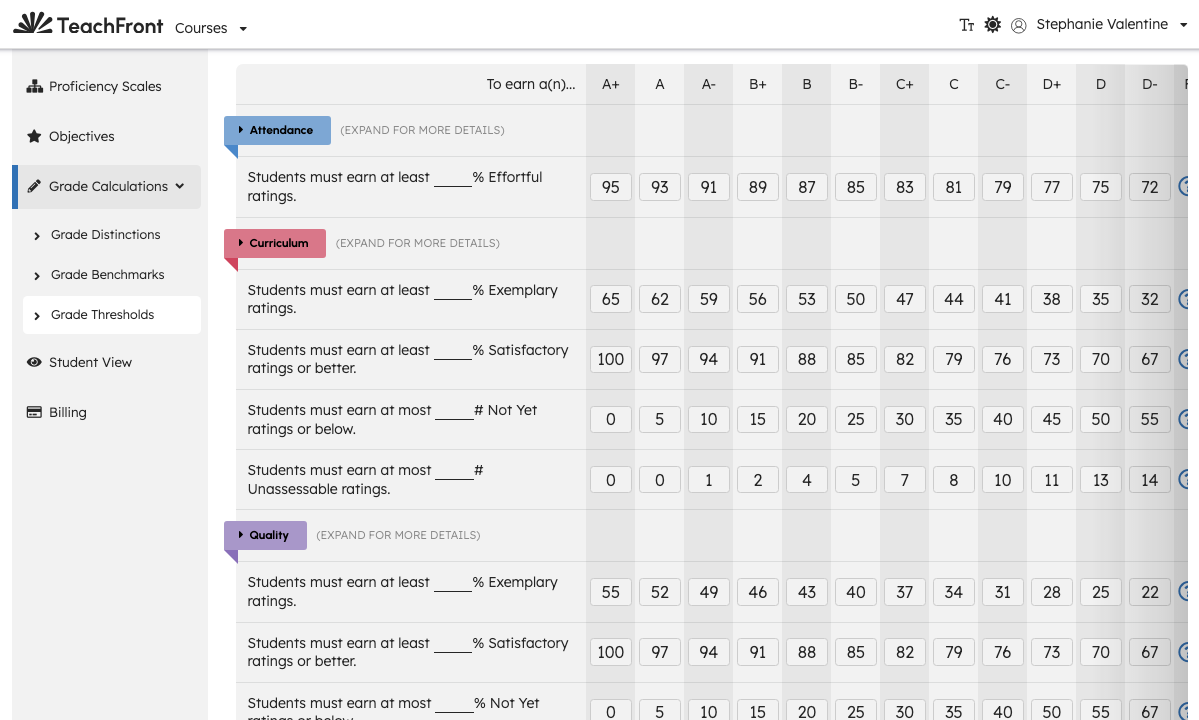
Grade Thresholds are the specific values that determine which Grade Distinction a student’s portfolio meets for each benchmark.
The thresholds page shows a table aligned to your benchmarks and distinctions. Edit cells and save when the form is dirty. The UI may expand rows for constraint details when configured.
Suggested setup order
| Step | Settings page | Why |
|---|---|---|
| 1 | Manage course objectives | Benchmarks reference objectives. |
| 2 | Proficiency scales overview | Ratings use scales and levels. |
| 3 | Grade Distinctions | Define the grade labels you will award. |
| 4 | Grade Benchmarks | Define proficiency bars per benchmark. |
| 5 | Grade Thresholds | Map benchmarks to distinctions. |
Troubleshooting
| Situation | What to try |
|---|---|
| Links to distinctions or benchmarks are disabled | Open the linked settings page from the message and complete prerequisites. |
| Threshold table is empty | Add distinctions and benchmarks first; confirm objectives are loaded. |
| Save fails on thresholds | Review validation errors in the form; ensure all required cells are filled. |