Course syllabus overview
Overview
The Syllabus tab is the course’s public-facing overview: instructors, description, rich-text syllabus content, and optional embedded sections for objectives, proficiency scales, grade calculations, and the calendar.
Open the syllabus
- Open your course.
- Select Syllabus.
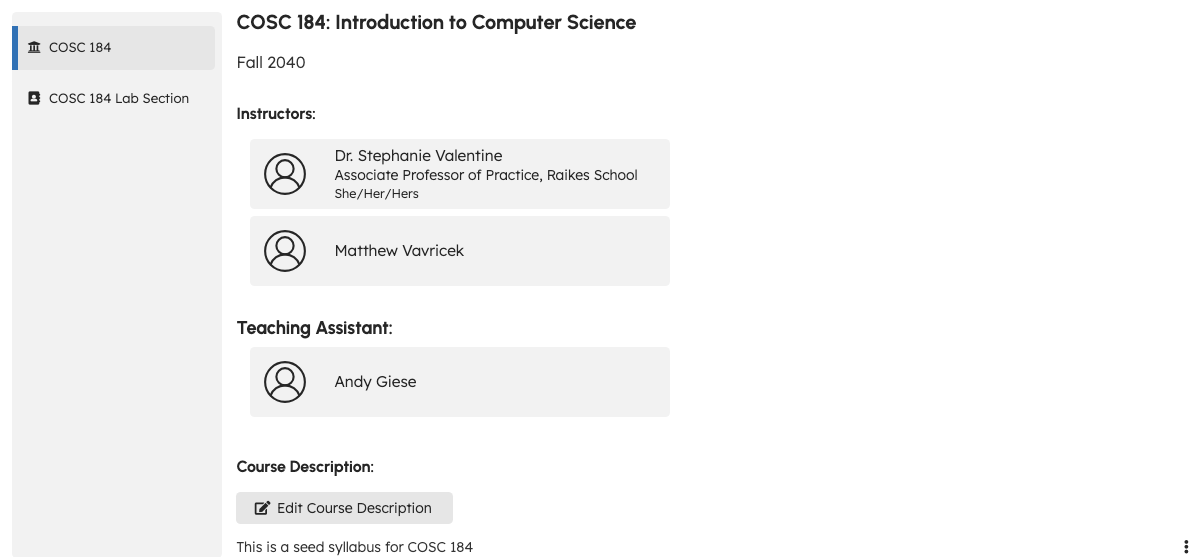
The default view shows the course syllabus (course short name in the sidebar). On paid courses with sections, additional sidebar entries list each section syllabus.
Course syllabus page
The course page typically includes:
| Section | Purpose |
|---|---|
| Instructors | Teaching-team members for the course. |
| Course Description | Short description; teaching team can Edit Course Description. |
| Course Details (rich text) | Main syllabus body; teaching team can Edit Course Details. |
Embedded content markers (course syllabus)
In the rich-text Course Details editor, special markers pull live data into the published syllabus when saved:
| Marker (example) | Embeds |
|---|---|
[objectives] | Course objectives and linked assignments. |
[proficiency scales] | Proficiency scales for the course. |
[grade calculation table] | Grade calculation table for the viewing user’s context. |
[calendar] | Course calendar entries (list view). |
TeachFront may block save when one or more markers are missing from Course Details. PO has not decided whether all markers are mandatory for every published syllabus or only recommended starter templates for new courses (DEC-081). Treat marker requirements as product behavior that may change — do not promise “optional” embeds in customer docs until PO closes DEC-081.
Direct page links (DEC-080)
Standalone syllabus or course page URLs require course membership. Do not document strict cross-course page isolation in customer docs until DEC-080 / SEC-CONTENT-01 remediation lands. If a page link fails to load, confirm the link belongs to the course you opened and that you are signed in with the correct account.
You can attach files to the syllabus page when the page record exists (file upload controls in the editor).
Section syllabi
Select a section in the sidebar to open a section-specific page with:
- Section name and term
- Section teaching team
- Edit Section Syllabus rich text (section-only content)
Student view
Students read the same Syllabus tab without edit controls. They see published description, markers rendered as live content, and section pages for sections they belong to.
Related
Troubleshooting
| Situation | What to try |
|---|---|
| Cannot edit syllabus | Confirm teaching-team role. |
| Save blocked on course details | Add missing content markers listed in the validation message. |
| Embedded calendar empty | Add assignments/events; check Course calendar. |
| Section page missing | Confirm section exists under Course Roster and user is in that section. |