Student view (preview as a student)
Overview
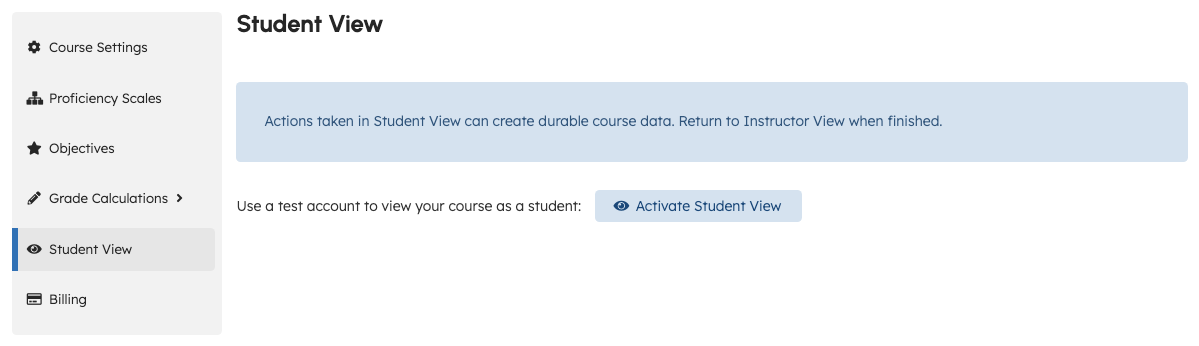
Student View lets instructors of paid courses open the course as a test student and navigate student-facing pages (for example Assignments).
Before you start
- You must be on the teaching team for the course.
- Student View is available for paid courses. On free courses, the Activate Student View control is disabled and the UI explains that the feature applies to paid courses.
Activate student view
- Open your course.
- Go to Course Settings.
- Select Student View in the sidebar.
- Select Activate Student View.
TeachFront signs you into a test-student experience and navigates you into the course (typically the Assignments area).
While in student view
- You see the course from the student navigation model.
- Some instructor-only routes redirect back into the course when accessed in student view.
Exit student view using the control shown in the UI (wording may vary by release) to return to your instructor session.
Troubleshooting
| Situation | What to try |
|---|---|
| Activate Student View disabled | Confirm the course is a paid access type, not free. |
| Activation fails | Retry when the API is available; check for a toast error about the test student account. |
| Unexpected pages after activation | Student view limits certain instructor paths; return to normal instructor mode from the UI. |