Course gradebook overview
Overview
The Gradebook tab (teaching team only) shows each student’s grade distinction and ratings under grade benchmark groups that count toward grade calculations. Use it for course-wide progress checks, sorting by distinction or proficiency counts, drilling into per-assignment ratings, and exporting data on paid courses.
Before you start
- You must be on the teaching team. Students do not see the instructor gradebook tab.
- Configure Grade calculations (distinctions, benchmarks, thresholds) and complete Objectives and Proficiency Scales prerequisites so benchmark columns load.
- Ratings must exist on assignments tied to objectives in each benchmark group before cells show meaningful counts.
Open the gradebook
- Open your course.
- Select Gradebook from the course menu.
The page header is Course Gradebook. On-page guidance explains that only ratings included in the grade calculation are shown.
Reading the table
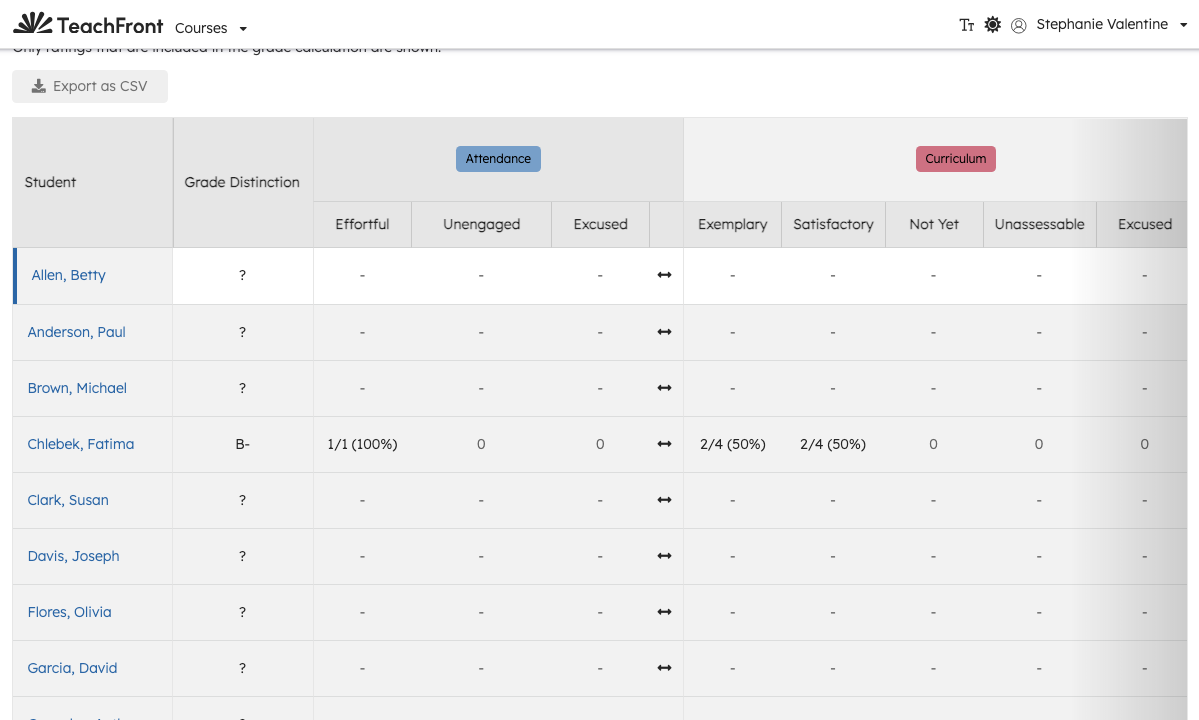
The roster table has a fixed Student column and Grade Distinction column, then one section per grade benchmark group configured for the course.
| Area | What you see |
|---|---|
| Student | Last name, first name. The name is a link to that student’s Grade Calculations detail view. |
| Grade Distinction | The distinction the student currently meets (for example a letter or proficiency label), or ? when none applies yet. |
| Benchmark group headers | Colored labels for each group. Groups marked (Not Included in Grade Calculations) still appear but do not affect the distinction column. |
| Proficiency level columns | Under each group, counts (and sometimes percentages) of ratings at each proficiency level that count toward calculations. |
Grade distinction and ?
A ? in the distinction column usually means the student has not yet been rated for benchmark groups that are included in the grade calculation. It is not the same as “no students” or a loading error.
Select a student’s name (not only the distinction label) to open Grade Calculations for that student and review thresholds, benchmarks, and supporting ratings.
Sort the roster
Click column headers (or use keyboard on sortable headers) to sort by:
- Student name
- Grade Distinction
- Individual proficiency level columns within a benchmark group
Sorting helps you find students stuck at ? or compare proficiency counts across the roster.
Expand assignment detail
Each benchmark group has an expand control on the row (horizontal arrows icon). Expanding adds assignment-level columns for that group:
- Assignment headers may include a dropdown to switch context when multiple assignments map to the group.
- Expanded cells show per-assignment rating summaries for the selected student.
Collapse the group when you only need course-wide proficiency totals. Expand when you are tracing which assignments drove a low count or an unexpected distinction.
Export as CSV (paid courses)
On paid courses, Export as CSV opens Export Grade Book. Choose how proficiency levels are organized in the file:
| Export option | Use when |
|---|---|
| Grade Benchmark Groups | You want columns aligned to benchmark groups (matches the gradebook table grouping). |
| Course Objectives | You want columns aligned to course objectives instead of benchmark groups. |
The download uses the course short name in the filename. Free courses show Export as CSV disabled with a message about upgrading to a paid course.
Typical workflows
Weekly roster check
- Open Gradebook and sort by Grade Distinction or scan for ? rows.
- Expand a benchmark group with many zeros or dashes.
- Open a student name link to confirm missing ratings vs threshold gaps in Grade Calculations.
End-of-term export
- Confirm the course is paid and export is enabled.
- Run Export as CSV with Grade Benchmark Groups for advising-style summaries, or Course Objectives when your external sheet is objective-keyed.
- Cross-check a few students in-app before sharing the CSV outside TeachFront.
After changing grade calculations
If you add benchmarks, exclude a group from calculations, or change thresholds, refresh expectations:
- Excluded groups show (Not Included in Grade Calculations) in the header.
- Distinction and proficiency cells update as new ratings arrive; students with ? may need fresh ratings on newly included groups.
Troubleshooting
| Situation | What to try |
|---|---|
| Gradebook tab missing | Teaching-team only; confirm your course role. |
| Export disabled | Paid-course feature; verify Course Access Types / billing on the course. |
| Unexpected ? | Rate work for benchmark groups included in calculations; open the student’s Grade Calculations detail. |
| Empty table / “no students enrolled” | Confirm students are enrolled with a student role on the roster. |
| Benchmark group missing | Add or enable the group under Grade calculations. |
| Group shows “Not Included in Grade Calculations” | Expected when the benchmark is excluded; distinction ignores that group. |
| Proficiency cells show - or 0 | No included ratings yet for that level; rate assignments tied to objectives in that group. |
| Expanded columns empty | Expand the group; confirm assignments map to objectives in that benchmark group. |
| CSV download fails | Retry once; note any toast error; confirm paid access and try another browser if the modal does not download. |
| Export does not match the on-screen table | You may have chosen Course Objectives vs Grade Benchmark Groups — re-export with the other organization option. |
| Student sees different grades than gradebook | Students use View your grades; instructor gradebook includes unpublished ratings per teaching-team rules. |
Student name does not open Grade Calculations
Confirm you clicked the student name link in the first column. If the route fails, refresh the gradebook and retry; collect course ID and student name if support escalation is needed.
Sort order looks wrong after refresh
Click the same header again to toggle ascending/descending, or click Student to reset focus. Large rosters may take a moment to load ratings before sort reflects all data.