Request a due date extension
Overview
If you need more time on an assignment, you can request a due date extension. Your request goes to the teaching team to review.
Before you start
- You must be enrolled in the course.
- The course must have due date extensions enabled.
- Some courses set limits (for example: how many extensions you can request). If you're over a limit, TeachFront may show an over-limit message (and your course may allow or block additional requests).
Request an extension
- Open your course in TeachFront.
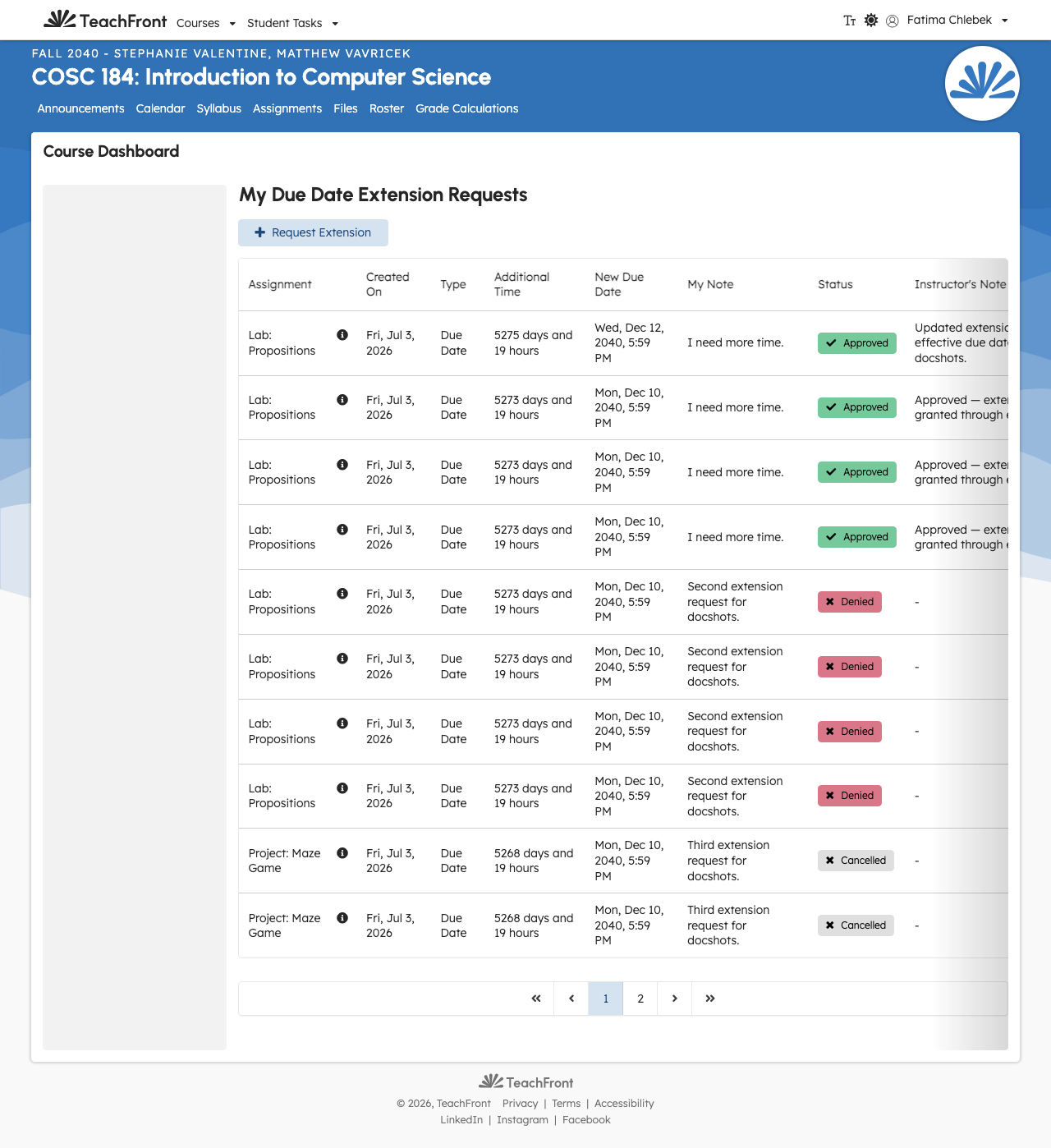
- Open Due Date Extensions.
- Find the assignment you need more time for.
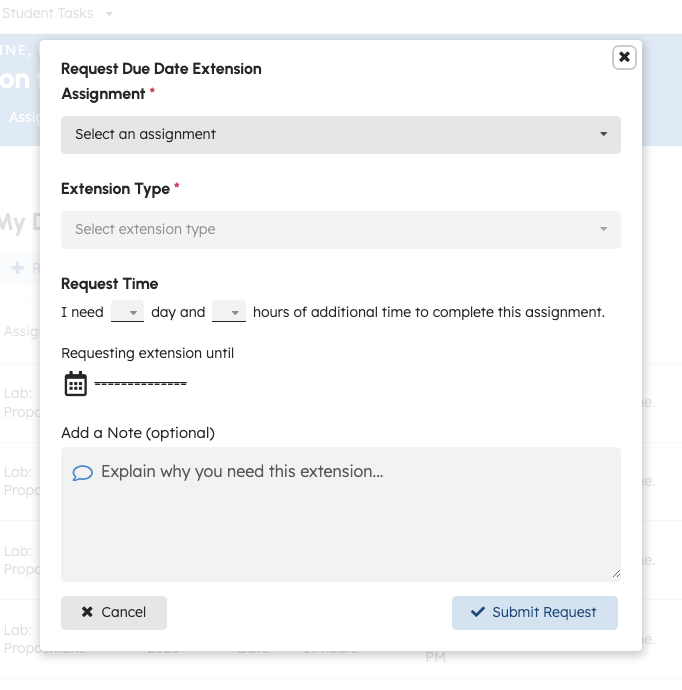
- Select Request extension.
- Choose your requested due date.
- Add an optional note for your instructor.
- Submit your request.
Track your request
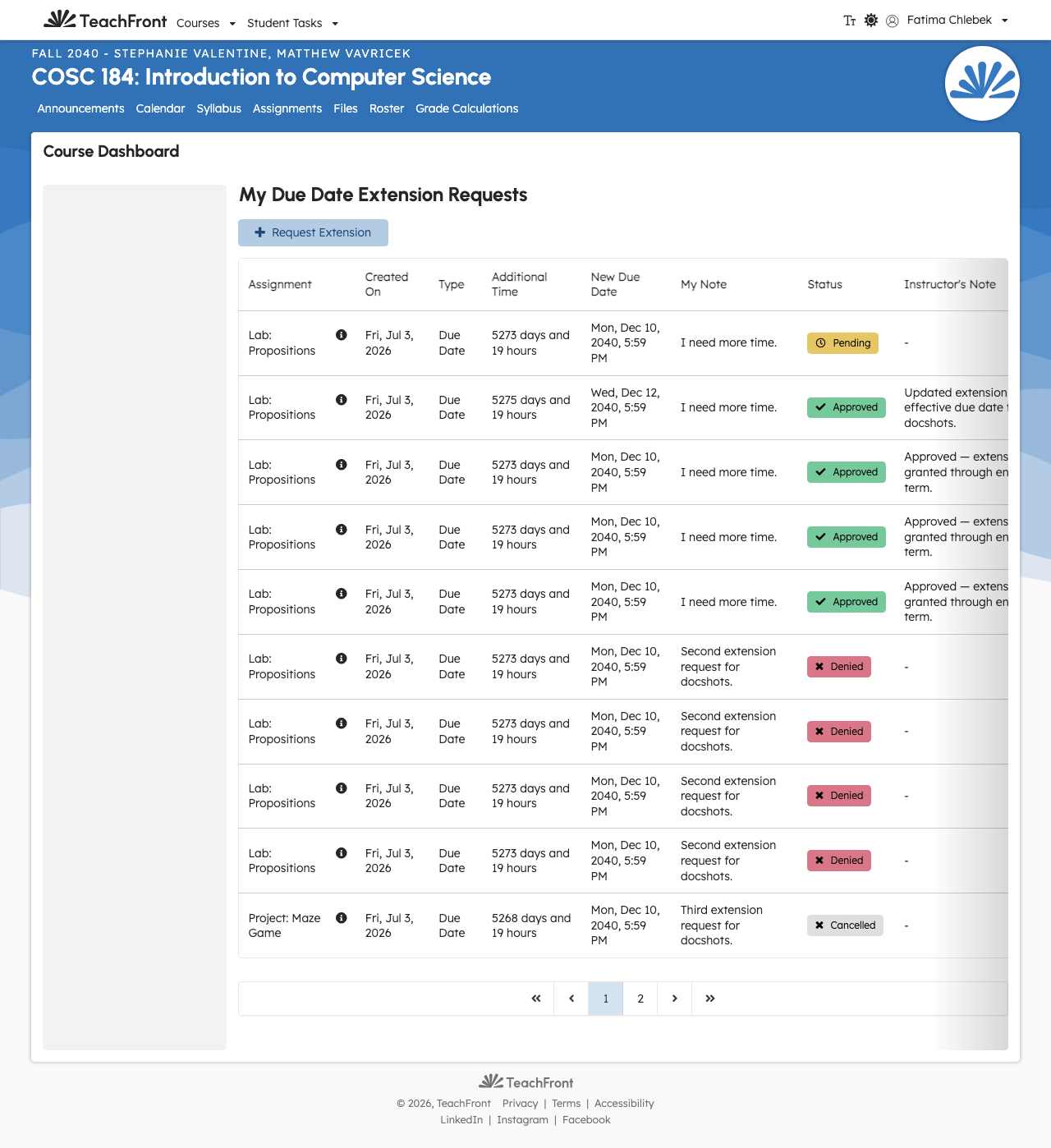
- Return to Due Date Extensions.
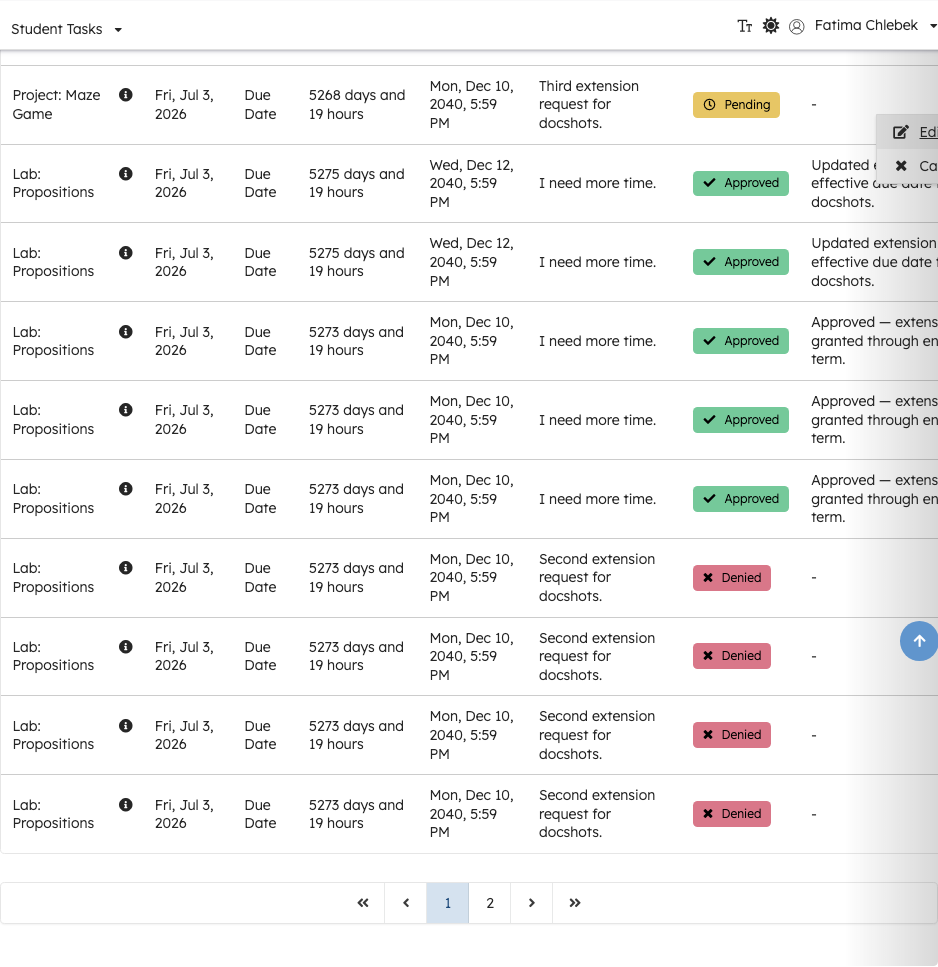
- Check the status of your request.
- Open the request to review:
- The final due date (if approved)
- Any instructor note

Cancel a pending request
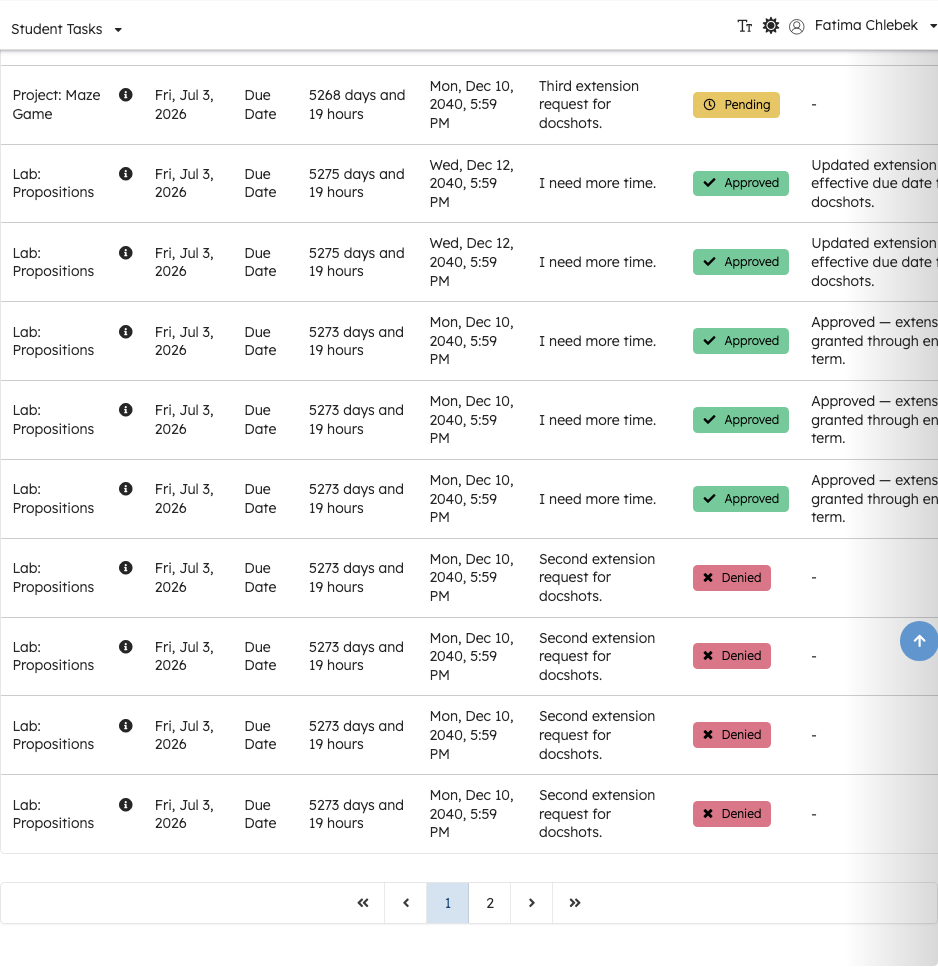
You can cancel a request only while it is pending.
- Open Due Date Extensions.
- Open the request with status Pending.
- Select Cancel request.

What changes when an extension is approved?
- Your assignment's effective due date updates to the approved due date.
- Your ability to save drafts or submit work should follow the updated effective due date.
Troubleshooting
I don't see "Due Date Extensions"
- The course may not have extensions enabled.
- You may not have access to the course you expect (for example, you're in the wrong course or account).
I can't cancel my request
- Cancel is available only while the request is Pending.
My new due date isn't showing where I expected
- Refresh the page and check Due Date Extensions for the final due date.
- If the due date still looks wrong, contact your instructor and include:
- the assignment name
- the due date you requested
- the status you see (Pending/Approved/etc.)