Course files overview
Overview
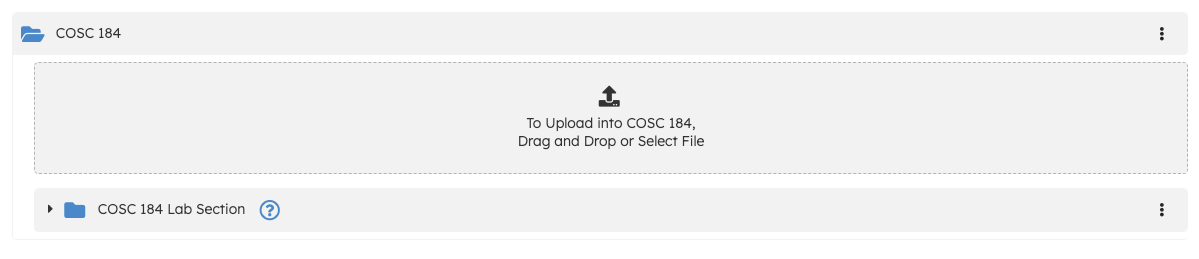
Course Files lists files uploaded at the course level (not only inside a single assignment). Files may be organized in folders and linked to sections on paid courses.
Open course files
- Open your course.
- Select Files.
The page header is Course Files. Content loads in a directory-style list.
What you see
- Folders and files for the course, as uploaded by the teaching team or linked from course workflows.
- Section scoping may apply when your course uses sections; the UI reflects which files are visible for each section.
Teaching-team upload and management controls appear where your role allows (for example upload buttons in folder views).
Related
- Assignments overview (assignment-attached files)
- Course roster overview (sections)
Troubleshooting
| Situation | What to try |
|---|---|
| Empty file list | Confirm uploads completed; check section filters if applicable. |
| Student cannot see a file | Verify section links and file visibility rules for paid courses. |