Create and edit a quiz
Overview
Teaching-team members build quizzes from the course Quizzes tab. A quiz is made of one or more sections, and each section holds either a fixed list of authored questions or a random draw from a question pool.
Before you start
- You need teaching-team access for the course.
- The Quizzes feature must be enabled for your course.
Open the Quizzes tab
- Open your course.
- Select Quizzes.
Existing quizzes appear as cards showing the quiz title and colored chips for every objective the quiz assesses. Teaching-team members also see an options menu on each card for deleting the quiz.
Create a quiz
- From the Quizzes tab, select Create Quiz.
- Enter a title for the new quiz and confirm.
- TeachFront creates the quiz and opens the quiz editor.
Quiz settings
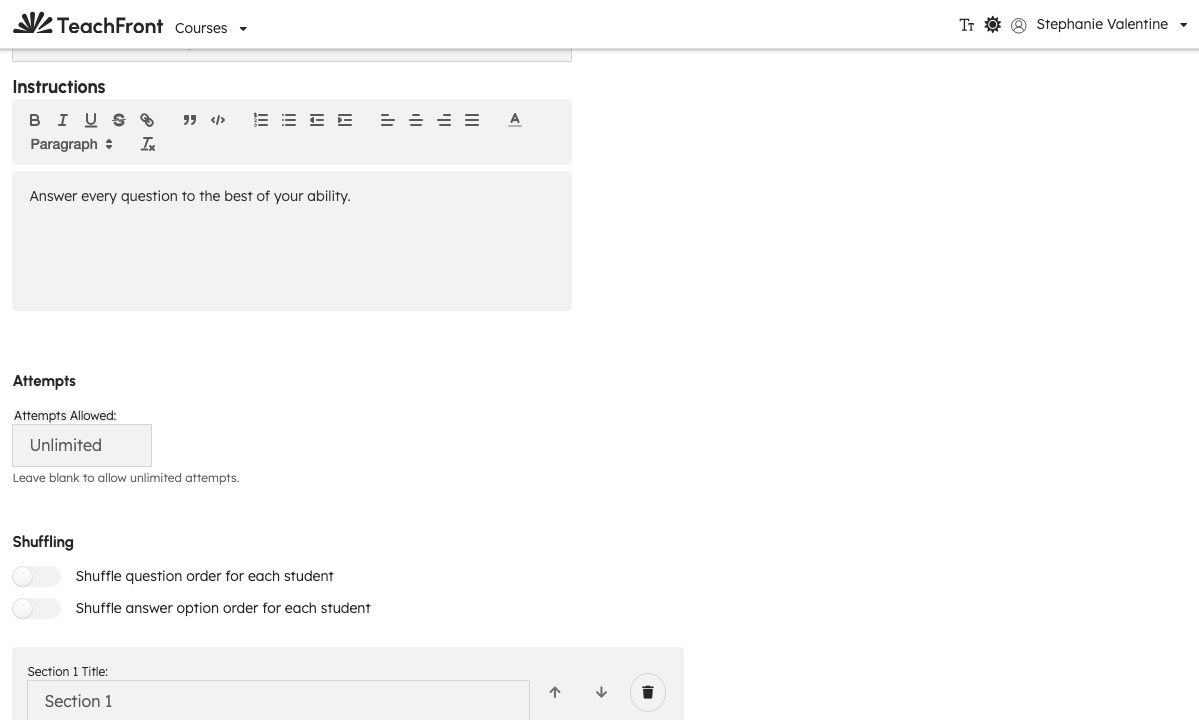
At the top of the quiz editor:
- Quiz Title — required.
- Instructions — optional rich text shown to students before they start.
- Attempts Allowed — leave blank to allow unlimited attempts, or enter a number to cap how many times a student can attempt the quiz.
- Shuffle question order for each student and Shuffle answer option order for each student — independent toggles.
Sections
A quiz has an ordered list of sections. For each section you can:
- Set a section title (defaults to "Section N" if left blank).
- Reorder sections with the up/down arrows, or remove a section.
- Choose a Rollup Aggregation method for proficiency-scale questions in that section (Min, Median, Max, or Mode — this only applies to questions scored on a proficiency scale; correctness questions always roll up as one percent across the section).
- Add questions directly, or switch the section to draw randomly from a question pool (see Question pools below).
Use Add Section at the bottom of the section list to add another section.
Questions
Within a section, select Add Question to add a question, then configure it:
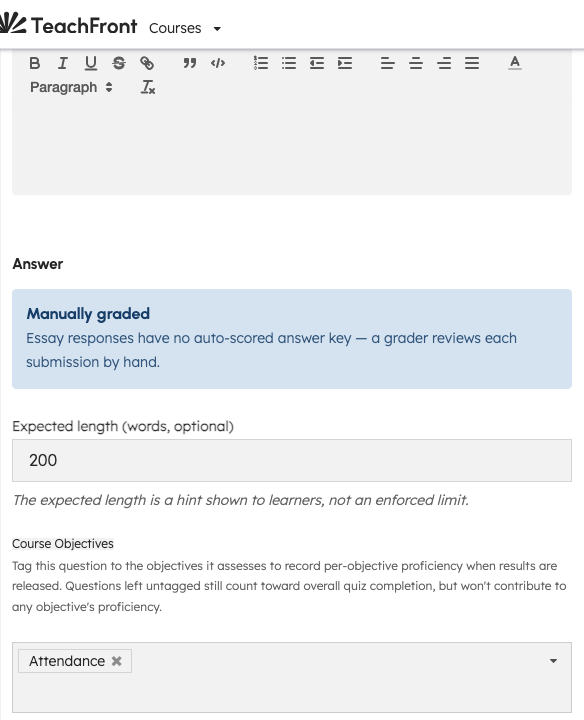
- Question Type — one of eight types: Multiple Choice, Multiple Answer, True/False, Matching, Short Answer, Fill in the Blank, Numeric, or Essay.
- Question Prompt — rich text.
- Answer — the answer configuration shown depends on the question type (options for choice-based types, correct text/value for short answer, numeric, etc.).
- Course Objectives — tag the objectives this question assesses. Tagging a question records per-objective proficiency once results are released; an untagged question still counts toward overall quiz completion but doesn't contribute to any objective's proficiency.
- Scoring Basis — once a question has at least one tagged objective, choose Correctness (right/wrong) or Proficiency scale (manual level).
Reorder or remove questions with the controls on each question row.
Question pools
A question pool is a course-level bank of reusable questions, managed separately from any one quiz (from the question pool library, alongside the Quizzes tab). To use a pool inside a quiz:
- In a section, select Switch to Pool Draw (only available if the course has at least one pool). If the section already has explicit questions, TeachFront asks you to confirm before clearing them.
- Choose a Question Pool.
- Set Questions to Draw (N) — how many questions to randomly draw from that pool for each student's attempt. N cannot exceed the pool's current question count.
Each student's attempt draws its own random N questions from the pool. You can switch a pool-draw section back to explicit questions at any time.
To manage the pools themselves — create a pool, add and edit its questions — open the question pool library from the Quizzes area of your course. Pool questions are authored the same way as quiz questions (type, prompt, answer), but without objective tagging, since a pool isn't scoped to one quiz.
Proficiency thresholds
For every objective tagged on at least one question in the quiz, the editor shows a threshold configuration panel. See Configure proficiency thresholds for details.
Save
Select Save Quiz at the bottom of the editor. Saving persists the quiz, its sections and questions, and any threshold bands you edited in this session.
Delete a quiz
From the Quizzes tab, open a quiz card's options menu and select Delete Quiz. Confirm in the dialog that appears.
Related
- Import a quiz from Canvas, Moodle, or Common Cartridge
- Configure proficiency thresholds
- Grade essay responses and release results
Troubleshooting
| Situation | What to try |
|---|---|
| Create Quiz fails with "Quiz title is required." | Enter a non-blank title. |
| Switch to Pool Draw not available | Create at least one question pool for the course first. |
| Save Quiz shows a threshold-save error | Open the affected objective's threshold panel and re-check the bands you edited; other quiz content is still saved. |
| Objective missing from threshold panel | Tag at least one question in the quiz with that objective. |