Course calendar overview
Overview
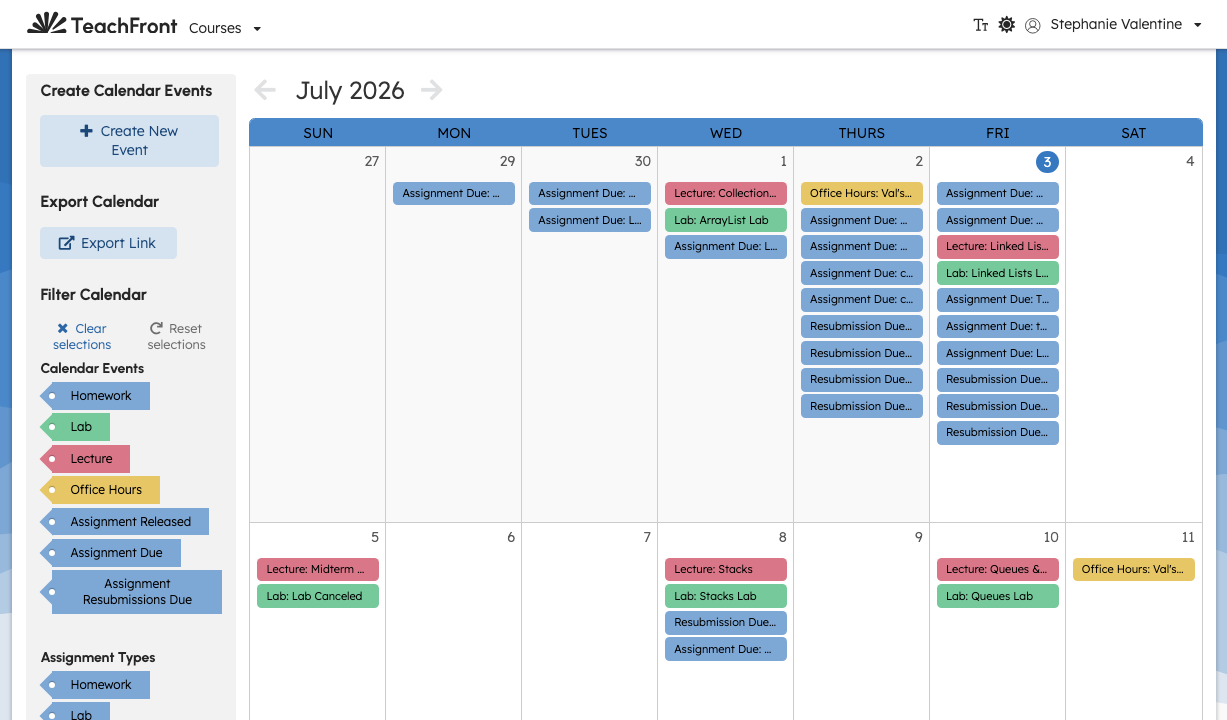
The Course Calendar shows dated events for your course—assignment due dates, custom events, and other entry types your course uses. Instructors can create events, filter what appears, and export a subscription link.
Open the calendar
- Open your course.
- Select Calendar.
The page header is Course Calendar. Use the view toggles in the header to switch formats.
List vs grid view
| View | Icon (approx.) | Behavior |
|---|---|---|
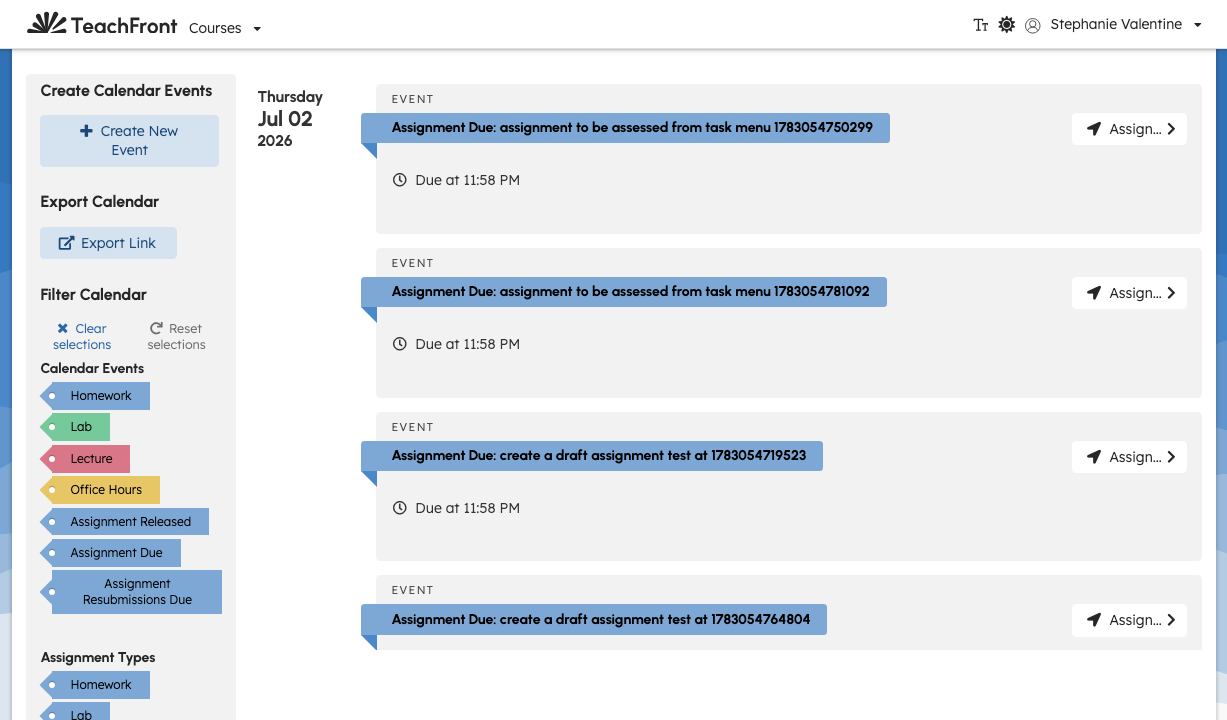
| List (vertical) | List/justify icon | Scrollable chronological list of entries by day. |
| Grid | Grid icon | Month-style grid; changing the visible date range loads entries for that range. |
Both views respect the same filters.
Create calendar events (teaching team)
In the Create Calendar Events section:
- Select Create New Event.
- Complete the calendar entry form (title, times, type, links, and recurrence options shown in the modal).
- Save.
Students do not see the create controls.
Filter and export
The preferences panel includes:
- Export Link — open Export Calendar to obtain a subscription/export link for your personal calendar app (follow in-modal instructions).
- Filter Calendar — toggle which calendar entry types and assignment types appear.
- Clear / Reset filter actions when selections are active.
Assignment-related filters may interact with assignment filters used elsewhere in the course UI.
Reading entries
Each entry appears as a card with type, time, and links (for example to an assignment). Select entries when the UI offers navigation to related course content.
Troubleshooting
| Situation | What to try |
|---|---|
| No events visible | Widen date range in grid view; reset filters; confirm assignments exist. |
| Cannot create event | Confirm teaching-team role. |
| Export link does not subscribe | Use the URL in the export modal with a supported calendar client. |