Course announcements
Overview
Course Announcements lets the teaching team post updates to students and—when enabled—manage threaded replies. Students read announcements from the same course tab.
Before you start
- You must be on the teaching team to create or delete announcements.
- On paid courses with sections, you may limit which sections see an announcement using section links in the editor.
Open announcements
- Open your course in TeachFront.
- Select Announcements from the course navigation.
The page title is Course Announcements. A sidebar lists announcements (newest first). The main panel shows the selected announcement.
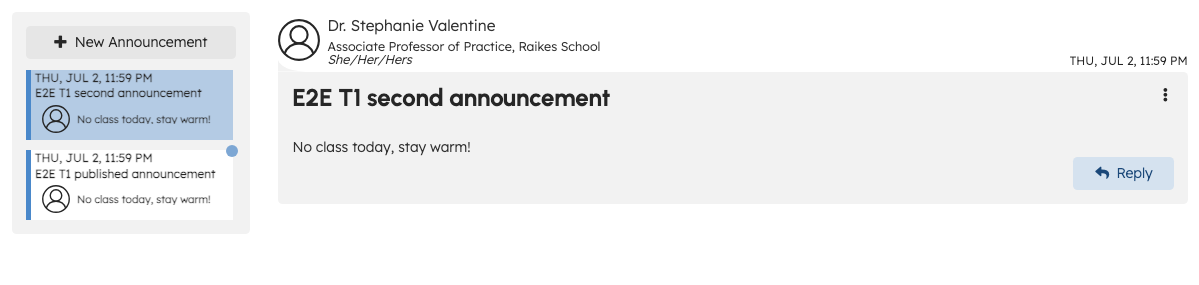
Read and unread states
TeachFront tracks whether you have read each posted announcement and its visible replies.
- Unread indicator: A colored dot on a sidebar tab means you have not read that announcement yet, or there are visible replies in that thread you have not opened. Hidden and draft replies do not affect the indicator.
- Marking as read: Opening a posted announcement marks it read for you. Opening an announcement also marks any unread visible replies in that thread as read.
- Default selection: If you open Announcements without choosing a specific post, TeachFront opens the newest announcement.
- Direct links: A valid announcement link opens that post. If the link points to an announcement that no longer exists in the course, TeachFront opens the newest available announcement instead. Malformed links show the Not Found page.
Teaching-team members see the same read/unread behavior as students for posts they can access. Draft announcements you are editing appear in your sidebar but do not affect other users' unread indicators until posted.
Create an announcement
- Select New Announcement in the sidebar.
- TeachFront opens a draft announcement in edit mode.
- Complete:
- Subject (required)
- Content (rich text editor)
- Disable Student Replies (toggle; when on, students cannot reply—teaching-team replies may still appear per UI rules)
- Sections (when section linking is available—choose which sections receive the announcement)
- Attachments, if shown in the file upload area
- Choose an action:
- Post — publishes the announcement (toast: announcement successfully sent).
- Save as Draft — keeps the announcement as a draft until you post.
- Cancel — exit editing without saving (confirm if prompted).
Draft announcements are visible to the author in the sidebar while editing; other users typically do not see another author’s drafts in the list.
Edit or delete a published announcement
- Open the announcement from the sidebar, then use Edit (or equivalent) to change subject, content, replies setting, or section links. Save with Update.
- Delete asks for confirmation (“Are you sure you want to delete this announcement?”). After deletion, TeachFront navigates to another announcement or an empty list.
Email notifications (DEC-078)
When you Post a non-draft announcement for the first time, TeachFront may email course members a new announcement notice. Editing a posted announcement does not send another roster email today unless product policy changes under DEC-078. Do not promise edit-notification email in customer docs until PO decides.
Replies
When Allow replies is on:
- Students and teaching-team members can add replies under an announcement.
- The teaching team can hide replies or delete replies (with confirmation).
- Read state follows the rules in Read and unread states above. Unread visible replies show the same sidebar indicator as an unread announcement.
When replies are disabled, students do not add replies; teaching-team replies may still appear in the thread per product behavior.
Student experience
Students open the same Announcements tab to read posts. They do not see New Announcement. See the student article Read course announcements for the student-facing flow.
Troubleshooting
| Situation | What to try |
|---|---|
| Cannot find New Announcement | Confirm you are on the teaching team. |
| Post disabled | Fill required subject and content; resolve validation messages. |
| Section selector empty | Sections apply to paid courses; confirm section setup under Course Roster. |
| Students do not see an announcement | Confirm it was posted (not draft) and section links include their section if limited. |
Related
- Course roster overview (sections)
- Course settings overview