Proficiency scales overview
Overview
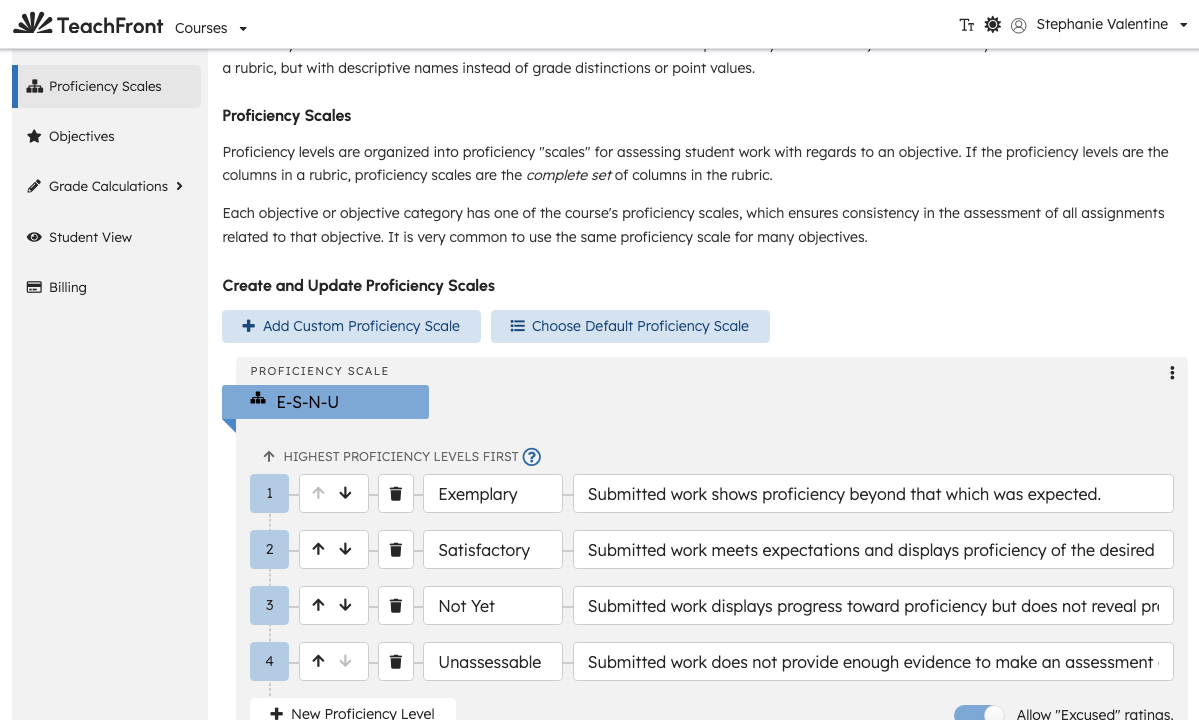
Proficiency levels describe how well student work demonstrates progress toward an objective. Proficiency scales group those levels into a full set used when rating submissions—similar to rubric columns with descriptive names rather than point values alone.
Before you start
- You must be on the teaching team for the course.
- Define Objectives before or alongside scales so assignments can reference both (see Manage course objectives).
Open proficiency scales settings
- Open your course.
- Go to Course Settings.
- Select Proficiency Scales in the sidebar.
The page explains how levels and scales relate to objectives and assignments.
Create or choose a scale
From Create and Update Proficiency Scales, you can:
- Add Custom Proficiency Scale — build a course-specific scale.
- Choose Default Proficiency Scale — start from a default template when your deployment provides one.
Each scale lists proficiency levels (the individual columns/descriptors). Edit levels and scale names using the controls on each scale card.
Objectives can reference one of the course’s scales so ratings stay consistent across assignments tied to that objective.
Paid vs free courses
Some scale actions may be limited by course access type (for example paid-course billing). Follow on-screen buttons and any disabled-state tooltips.
Related
Troubleshooting
| Situation | What to try |
|---|---|
| Cannot add a scale | Confirm teaching-team role; check paid-course restrictions in the UI. |
| Assignments lack rating columns | Ensure objectives use an appropriate scale and levels are defined. |
| Default scale modal empty | Your environment may not ship default templates—use Add Custom Proficiency Scale. |