Create a course
Overview
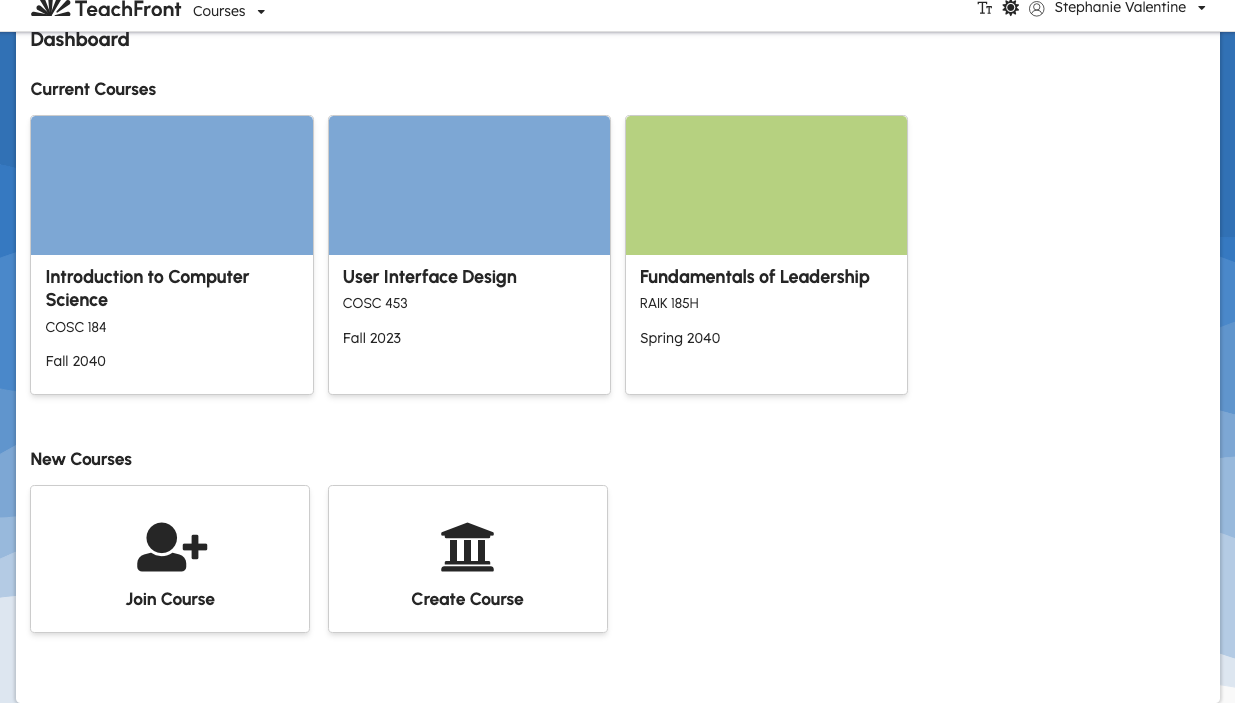
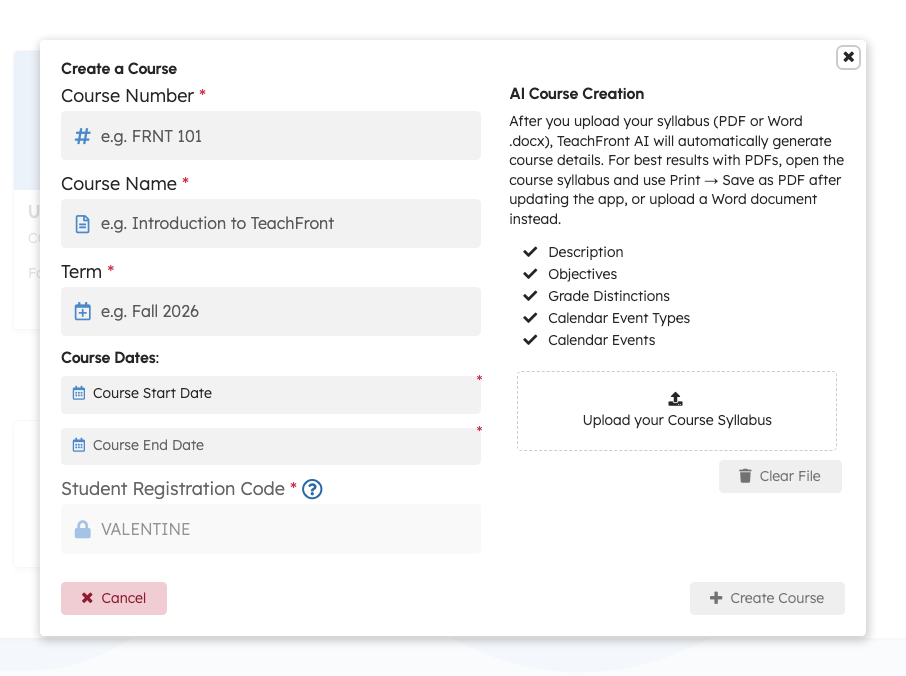
Instructors create courses from the Dashboard using the Create Course flow. The form collects course identity, dates, and a Student Registration Code students use to join.
Before you start
- You need a TeachFront account and must be signed in.
Create a course
- Open your Dashboard.
- Under New Courses, select Create Course.
- In the Create a Course window, complete the fields below.
- Select Create Course (or Create Course with AI if you attached a syllabus file).
Course details
| Field | Purpose |
|---|---|
| Course Number | Short identifier (for example FRNT 101). |
| Course Name | Full course title. |
| Term | Term label (for example Fall 2026). |
| Course Start Date / Course End Date | Course date range; end date must be after start date. |
| Student Registration Code | Code students enter to join; TeachFront may suggest a code from your name, course number, and term until you edit it. |
TeachFront verifies registration code availability as you type (when the code is valid length). Messages such as Registration code is available! or Registration code unavailable appear in the form.
The registration code field may stay disabled until Course Number and Term are filled, unless you choose a custom code first.
Optional: syllabus upload
You can attach a syllabus file in the same window. When a file is attached, the primary action label becomes Create Course with AI. Behavior of AI-assisted setup depends on your organization’s configuration; if generation fails, try creating the course without the file and configure the course manually.
Course activation codes are retired. TeachFront no longer uses a separate 8-character activation code at course creation. Use the Student Registration Code only.
After you create the course
- The new course appears on your dashboard.
- Open the course to configure settings, roster, and assignments.
- Share the Student Registration Code with students (see Course roster overview for roster and invite context).
Troubleshooting
| Situation | What to try |
|---|---|
| Registration code unavailable | Choose a different code; avoid spaces (TeachFront normalizes spaces to underscores and uppercases). |
| Cannot edit registration code | Fill in Course Number and Term first, or enter a custom code to override the suggested value. |
| Create fails after submit | Check for API or network errors in the UI message. |