Add pages to course navigation
Overview
Any page can be pinned to your course navigation so it appears as its own tab alongside Assignments, Files, and the rest — handy for a start-here page or a frequently used resource. Once pinned, a page tab behaves like any other tab: you can reorder it and control who sees it from your course settings. This article covers pinning, reordering, and hiding page tabs.
Before you start
- You must be an instructor or on the teaching team for the course.
- You need at least one page. See Create and organize pages.
Pin a page to course navigation
- Open the page you want to pin, or find its row in the Pages tree sidebar.
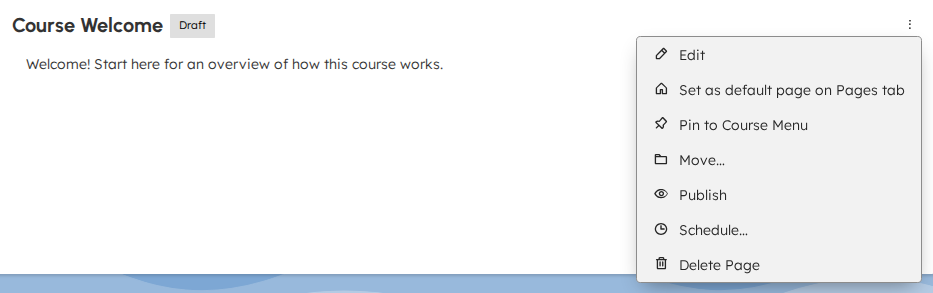
- Select the three-dot Page Options menu — at the top right of the open page, or at the end of the page's sidebar row.
- Select Pin to Course Menu.
Expected result
- The page is added to your course navigation as its own tab, using the page's name as the tab label.
- The menu entry changes to Unpin from Course Menu. Select it to remove the tab.
New page tabs are added to the end of the navigation. To move or hide one, use the Tab Visibility & Order settings below.
Reorder or hide a page tab
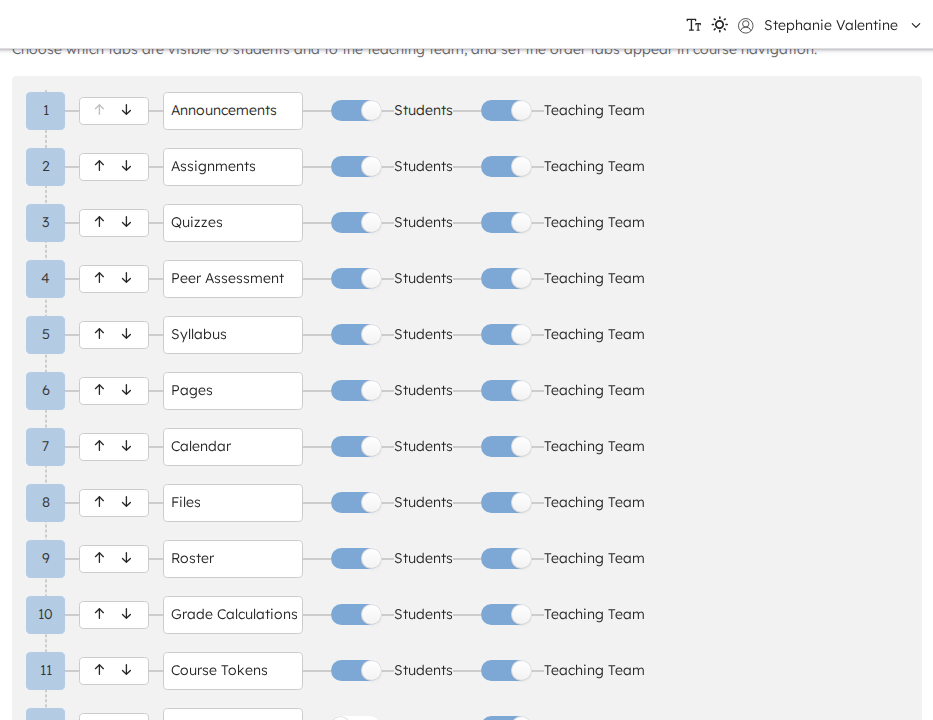
Pinned pages appear in Course Settings → Tab Visibility & Order alongside your other tabs.
- Open your course and go to Settings.
- Open Tab Visibility & Order.
- Find the pinned page's row (it shows the page's name).
- Use the up and down arrows to change where the tab appears in navigation.
- Use the Students and Teaching Team toggles to control who sees the tab.
- Select Save Changes.
The Students will see and Teaching Team will see previews show exactly how the navigation bar will appear to each audience.
Expected result
- The tab order and visibility update for the selected audiences after you save.
- Reset to Defaults restores the standard tabs' order and visibility while keeping your pages pinned.
Why draft pages can't be shown to students
Even if you turn on the Students toggle for a pinned page, students will not see that tab while the page is a draft or is scheduled. Page tabs follow the same publication rule as pages everywhere else: students only ever receive published pages.
To make a pinned page visible to students, publish the page first. Once it is published, the Students toggle takes effect.
Troubleshooting
I pinned a page but students don't see the tab
- Confirm the page is published, not a draft or scheduled.
- Confirm the tab's Students toggle is on in Tab Visibility & Order, then save.
I don't see my pinned page in Tab Visibility & Order
- Page tab rows only appear while the Pages feature is enabled for the course. Confirm the feature is on.
- If you deleted the page, its tab is removed automatically.