Assignments overview
Overview
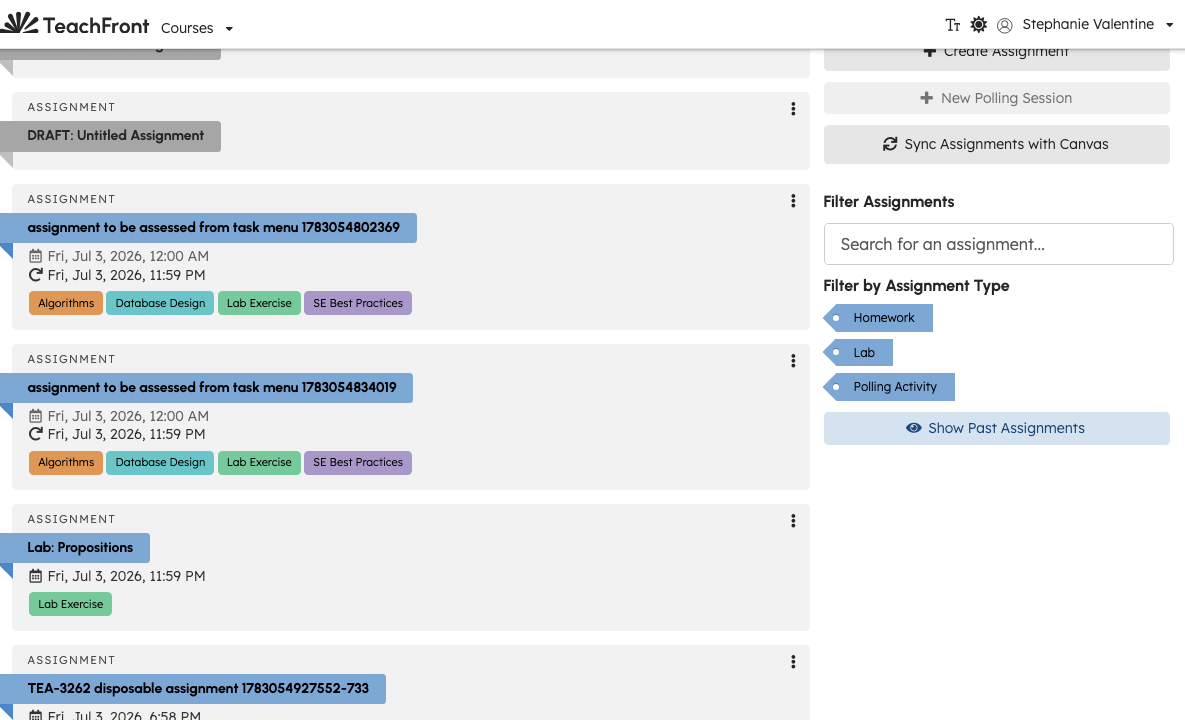
The Assignments tab lists every assignment in your course. Teaching-team members can create assignments, filter the list, and open an assignment to edit settings or review student work.
Open assignments
- Open your course.
- Select Assignments.
Assignments appear in the main list; filters and actions are in the sidebar (layout may stack on mobile).
Sidebar actions (teaching team)
| Action | Purpose |
|---|---|
| Create Assignment | Start a new assignment (opens the create/edit flow). |
| Sync Assignments with … | When LMS sync is configured, pull assignment updates from the connected platform (wording shows your platform name). |
| Resync Grades to … | When LMS sync is configured, manually resend your course's grades to the connected platform if you think a grade is out of sync. Rate-limited — see below. |
| Filter Assignments | Search and filter by assignment type; show or hide past assignments. |
Students see a reduced sidebar without create/sync controls.
Resync grades to your LMS
If you suspect a grade didn't make it to your connected LMS gradebook (for example, Canvas), select Resync Grades to … next to Sync Assignments to manually resend your course's grades. You don't need to know why a grade might be out of sync — just resync, then check your LMS gradebook again.
The button moves through a few states as it works:


This action is rate-limited. If you resync too often in a short period, the button shows a Try again shortly state; the cooldown is about two minutes per course, so wait a couple of minutes before resyncing again:

Working with an assignment
Select an assignment from the list to open its detail view. Available actions depend on assignment type and your role (for example edit, publish, assess submissions).
Related
- Create and edit assignments
- Review all submissions
- Import assignments and ratings from CSV
- Review due date extension requests
- Course dashboard overview
- Map external-tool scores to proficiency levels
Troubleshooting
| Situation | What to try |
|---|---|
| Create Assignment disabled | Confirm teaching-team access; wait for objectives to load if prompted. |
| Sync fails | Check toast error messages; confirm LMS sync is configured for your course. |
| Assignment missing from list | Clear filters; enable Show Past Assignments if the due date passed. |
| Grade missing in your LMS gradebook | Confirm the course is linked and assignments are synced, then try Resync Grades to …. If it still doesn't appear, contact support with the course, the assignment, and when you last tried a sync/resync. |