Send course invites
Overview
Course Invites let the Instructor Owner invite existing TeachFront users to join the course in a specific teaching-team role.
This is separate from student registration codes, which students use to self-enroll (see Join a course).
Before you start
- You must be the Instructor Owner for the course.
- Invitees must already have a TeachFront account at the email address you enter.
Send an invite
- Open your course.
- Open Course Roster.
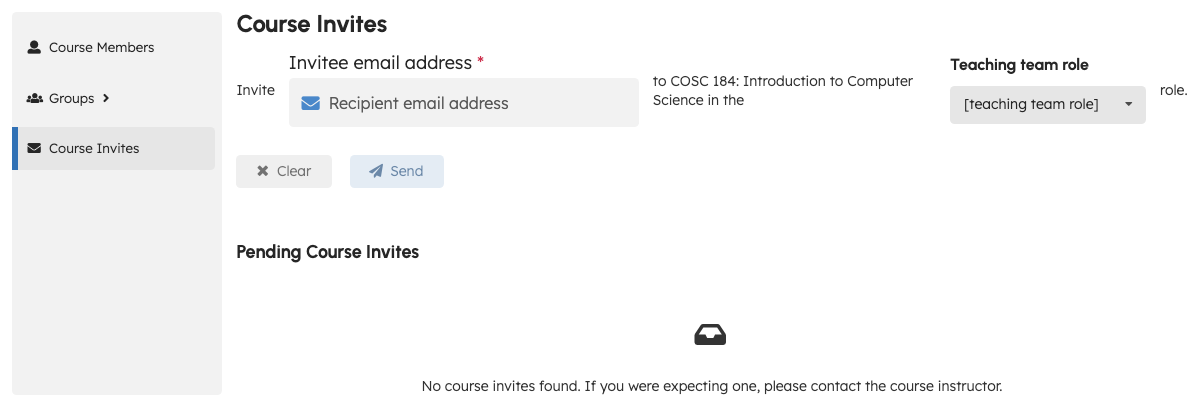
- Select Course Invites in the sidebar.
- Enter the user’s email and choose a role (for example TA or Instructor).
- Submit the invite form.
On success, TeachFront typically shows a confirmation toast and lists the invite under Pending Course Invites.
Manage pending invites
The Pending Course Invites section lists invites that have not been accepted yet. Use the actions shown in the list (for example cancel) as needed.
Troubleshooting
| Situation | What to try |
|---|---|
| Course Invites not in sidebar | Only the Instructor Owner sees this item. |
| Invite fails | Confirm the email matches an existing TeachFront account. |
| Student cannot use an invite | Students should use the registration code flow instead. |