Configure proficiency thresholds
Overview
For every objective tagged on at least one question in a quiz, you can configure proficiency threshold bands — ranges of scored percentage that map to a proficiency level on that objective's scale. When a student's results are released, their score for that objective falls into one band and records the corresponding level.
Before you start
- You need teaching-team access for the course.
- At least one question in the quiz must be tagged with the objective you want to configure.
Open threshold configuration
Threshold panels appear automatically in the quiz editor, below the sections, one per objective tagged anywhere in the quiz. Open the quiz from Quizzes and scroll to the Proficiency Thresholds area.
Set bands
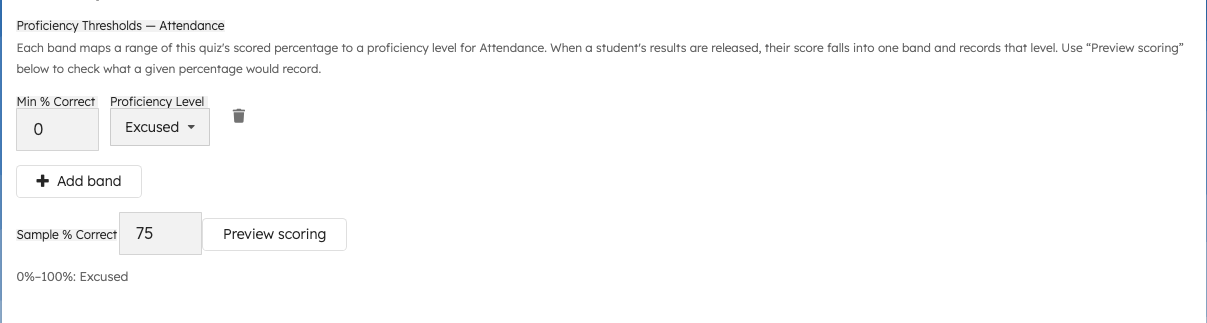
Each band has two fields:
- Min % Correct — the percentage where this band starts.
- Proficiency Level — the level on that objective's scale this band records.
Use Add band to add another band, or the trash icon on a band to remove it (you must keep at least one band).
If you haven't configured bands for an objective in this quiz yet, TeachFront seeds them from your course's default threshold bands for that objective, so you only need to make changes here if this quiz should score that objective differently from the rest of your course.
Preview scoring
Enter a Sample % Correct value and select Preview scoring to see which level that percentage would currently record, without saving anything. Use this to sanity-check your bands before saving the quiz.
Save
Threshold bands save along with the rest of the quiz when you select Save Quiz in the quiz editor. Only objectives whose bands you actually edited in this session are saved as quiz-specific overrides — an objective you didn't touch keeps using your course default.
Related
Troubleshooting
| Situation | What to try |
|---|---|
| Objective missing from threshold panel | Tag at least one question in the quiz with that objective. |
| Can't remove a band | At least one band must remain for each objective. |
| Threshold save error after Save Quiz | Reopen the affected objective's panel and re-check the bands you edited; the rest of the quiz still saved. |