Monitor a peer assessment and share results
Overview
Once assessing is underway, the peer assessment workspace lets you watch progress, step in where assessors disagree, compare how each pod is grading against your own placement, respond to reassessment requests, and decide what results students can see.
Live monitor
The live monitor shows how far each pod and each assessor has progressed through their queue. Use it to spot assessors who have not started, pods that are stuck, and criteria where placements are spread far apart.
Resolve divergence
Where assessors in a pod placed the same work very differently, the monitor surfaces the divergence so you can review it criterion by criterion and settle the placement for that criterion.
Pod Calibration
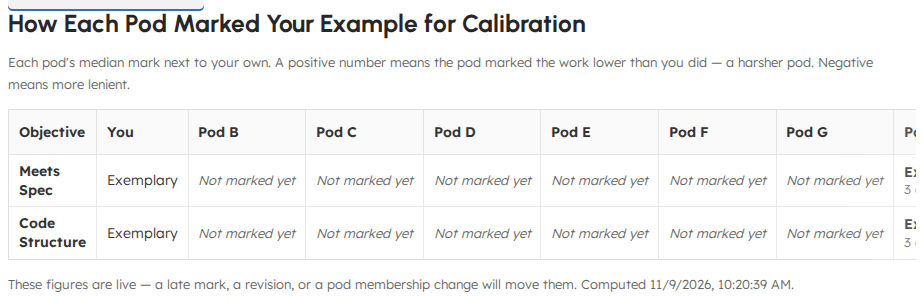
Pod Calibration compares each pod's median placement against your own on the same piece of work, so you can see which pods are grading harder or easier than you are.
Open Pod Calibration in the peer assessment workspace. The table lists one row per objective, your own placement in the You column, and one column per pod.
Before you can use it
You must have placed at least one of this cycle's Marked Examples against the objectives. Pods are compared against your own placement, so an unplaced example has nothing to compare to. If no Marked Example is placed, the panel says so instead of showing an empty table.
If the cycle has more than one placed Marked Example, a picker appears above the table so you can choose which example to compare pods against. Each placed Marked Example is its own independent comparison.
Reading a cell
A cell with a visible median shows the pod's median placement. A signed number appears next to it when the pod's median differs from your own:
- A positive number means the pod rated the work lower than you did — a harsher pod.
- A negative number means the pod was more lenient.
- No number means the pod's median matched your placement.
The number counts proficiency levels, so +2 means the pod's median sat two levels below your own placement. The direction is written out in the cell's tooltip as well ("harsher" / "more lenient"), so you never have to infer it from the color alone.
Two cell states show no median at all, and they mean different things:
- Not rated yet — nobody in that pod has rated this piece on this objective.
- Hidden — 1 of 2 raters — the pod has rated it, but by fewer distinct raters than the minimum needed to show a median. The count tells you how close the pod is, so a suppressed pod is never mistaken for one that has not engaged.
Reassessment requests
If you enabled Allow reassessment requests during setup, an author can submit a reassessment request with a note. Requests appear for review with a status of Pending review, and you can mark each one Approved or Declined.
Reflections
Students can send you an end-of-round reflection after discussion. Reflections arrive in the workspace so you can read how each student experienced the round.
Control what students see
Results visibility is under your control. Use the setup and workspace controls to decide when to Release feedback to authors and when the pod gallery, discussion, and final standing become visible. Anonymous cycles keep author and assessor identities hidden within the pod.
Grades
Peer assessment writes up to two gradebook entries per student:
- The work grade for the submission the student authored.
- The assess-the-assessor grade, when enabled — graded automatically by the aggregation method you chose (for example, distance from the pod median).
Both appear in the gradebook alongside your other assignments.
Related
Troubleshooting
| Situation | What to try |
|---|---|
| A pod shows no progress | Open the live monitor and confirm assessors have unlocked their queue (calibration complete on calibrated cycles). |
| Reassessment request cannot be found | Requests only appear when Allow reassessment requests was enabled for the cycle. |
| Assess-the-assessor grade looks off | Review the pod's placements for divergence and resolve outliers before relying on the median-based grade. |
| Pod Calibration says to place a Marked Example first | The view compares each pod against your placement, so place one of the cycle's Marked Examples against the objectives before opening it. |
| A Pod Calibration cell reads Hidden | The pod has rated that objective, but by fewer distinct raters than the minimum needed to show a median. The cell shows how many of the required raters have rated so far. |
| A rated Pod Calibration cell shows no signed number | The pod's median matched your own placement, so there is no difference to report. |
| A student could not set a mark to Excused | Only the teaching team can set a mark to Excused — it is an administrative judgment, not a peer one. The level is not offered to students when they assess. |