Configure course tokens
Overview
This article covers Course tokens → Settings: turn tokens on or off, configure Defaults (budget, refresh policy, spend limit by time period), and add Opportunities that students can unlock by spending tokens.
Before you start
- You must be an instructor or on the teaching team for the course.
- The Course Tokens feature must be enabled for the course.
Open token settings
- Open your course in TeachFront.
- Go to Course tokens → Settings.
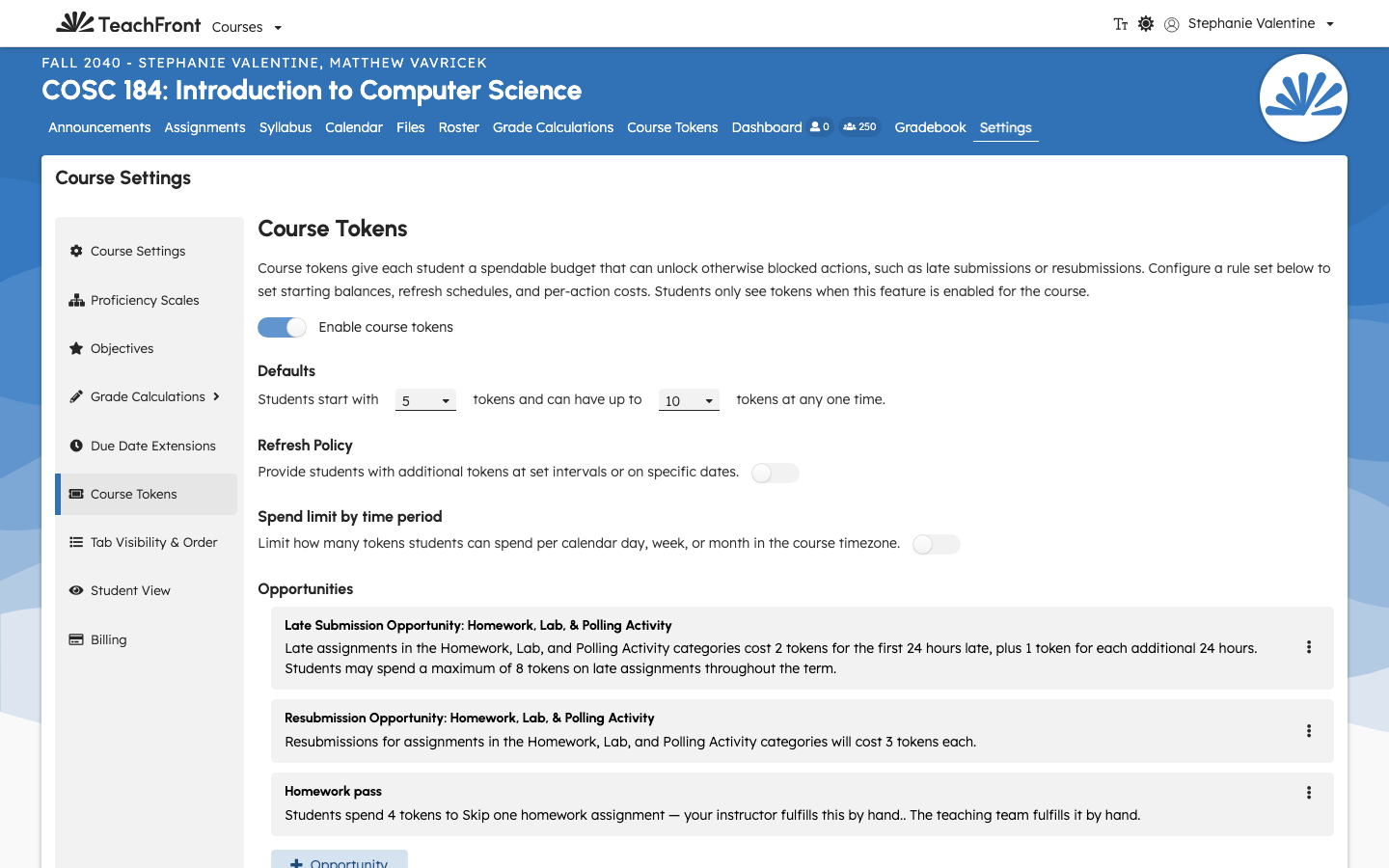
Enable or disable course tokens
Use Enable course tokens at the top of the page. When off, students cannot spend tokens and the Defaults/Opportunities sections are disabled until you turn the feature back on. Saving persists the inactive state — the server rejects all spends while tokens are disabled for the course.
Defaults — token budget
- Set Students start with — the starting balance for each student's pool.
- Set can have up to — the maximum balance a pool can ever hold. Granting and refreshing are both clamped to this maximum.
The starting amount cannot exceed the maximum; the form keeps them consistent automatically.
Students who enroll before you save settings appear on the roster at the starting balance even if they do not yet have a persisted pool row.
Defaults — refresh policy
Refreshing periodically tops up student balances (clamped to the maximum).
- Turn on the refresh toggle to provide additional tokens over time. Turn it off to stop refreshing.
- Set how many tokens to grant each refresh.
- Choose a refresh mode:
- Intervals — refresh every N days, weeks, or months.
- Dates — refresh on specific calendar dates you add.
When you choose Dates, add at least one valid date before saving. The Save button stays disabled until every date row is filled in.
Defaults — spend limit by time period
Optionally cap how many tokens students may spend per calendar period:
- Turn on Spend limit by time period.
- Set the maximum tokens spendable per day, week, or month.
- Period boundaries use the course timezone (captured when the course was created).
When the cap is reached, further spends in that period are rejected until the next period begins. The token panel may suggest waiting for the next period when a spend is blocked by this limit.
Opportunities
Opportunities define what students can unlock by spending tokens. Each opportunity is scoped to one or more assignment types and has a token cost (and optional per-term maximum and, for Late Submission, daily increase).
- Under Opportunities, choose + Opportunity.
- Pick a type:
- Late Submission — submit after the due date.
- Resubmission — resubmit for reassessment.
- Additional types appear as COMING SOON and cannot be selected (for example, deadline extension, excuse an assignment, additional attempts). Spend limit by time period is configured under Defaults, not here.
- Configure assignment types, token cost, and any optional limits in the modal.
- Saved opportunities appear as prose summaries with Edit and Remove actions.
Each assignment type may appear on at most one Late Submission opportunity and at most one Resubmission opportunity.
The Late Submission configure modal includes Also accept reassessments late. You can save this setting, but the server does not enforce late-reassessment gating from this toggle in the current release.
Save
Click Save. Your settings apply to all student pools in the course.
Changing an opportunity later does not retroactively refund tokens students already spent. A student who already paid to submit late keeps that access even if you later remove or disable the opportunity.