Course calendar overview
Overview
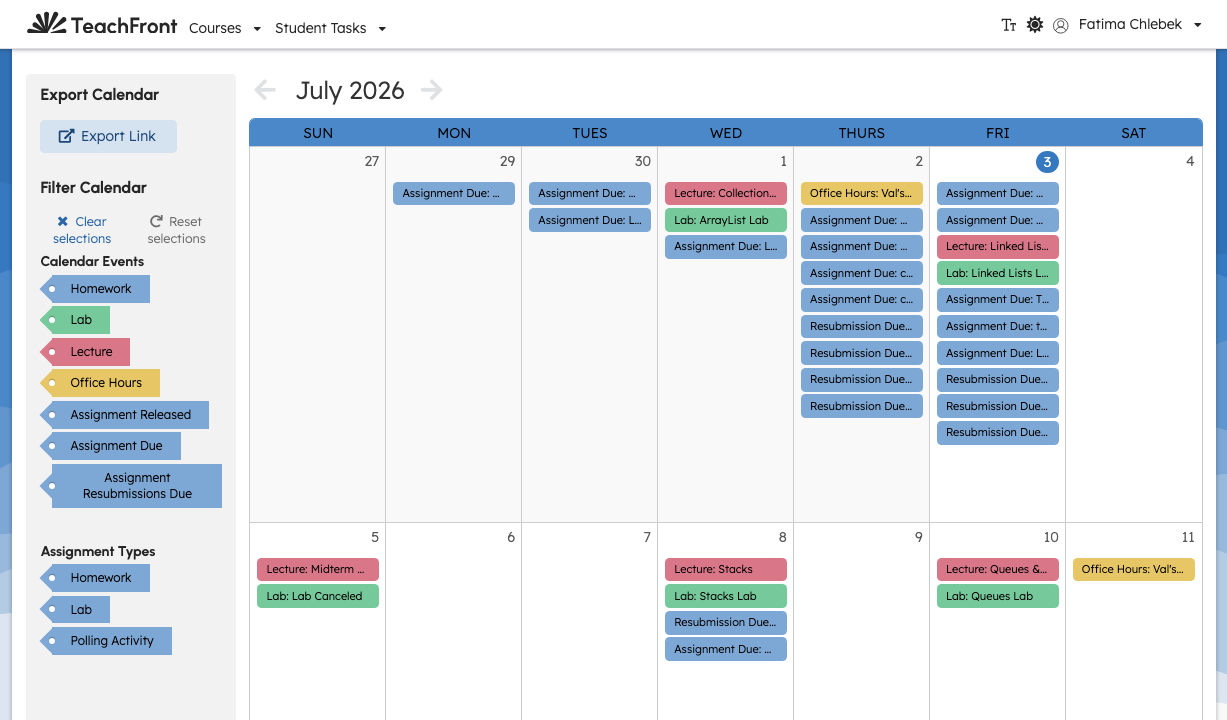
The Course Calendar shows dated course activity—especially assignment due dates and other events your instructor adds. You can switch between list and grid layouts and filter what you see.
Open the calendar
- Open the course.
- Select Calendar.
The page header is Course Calendar.
List vs grid view
Use the icons in the page header:
- List view — scroll through days and entries in order.
- Grid view — see entries on a calendar grid; move between date ranges to load more events.
Filter and export
The sidebar may include:
- Export Link — get a link to add course dates to your personal calendar app (follow the export dialog).
- Filter Calendar — show or hide certain entry types or assignment types.
- Clear / Reset when filters are active.
Filters help when many assignments overlap in the same week.
Using calendar entries
Open or follow links on event cards when offered (for example to jump to an assignment). Times display in the format TeachFront uses for your session.
Troubleshooting
| Situation | What to try |
|---|---|
| Missing due date | Check Assignments; the assignment may be unpublished or filtered out. |
| Empty calendar | Reset filters; scroll to the current month in grid view. |
| Export does not work | Copy the export URL carefully; try another calendar app. |