Take a quiz
Overview
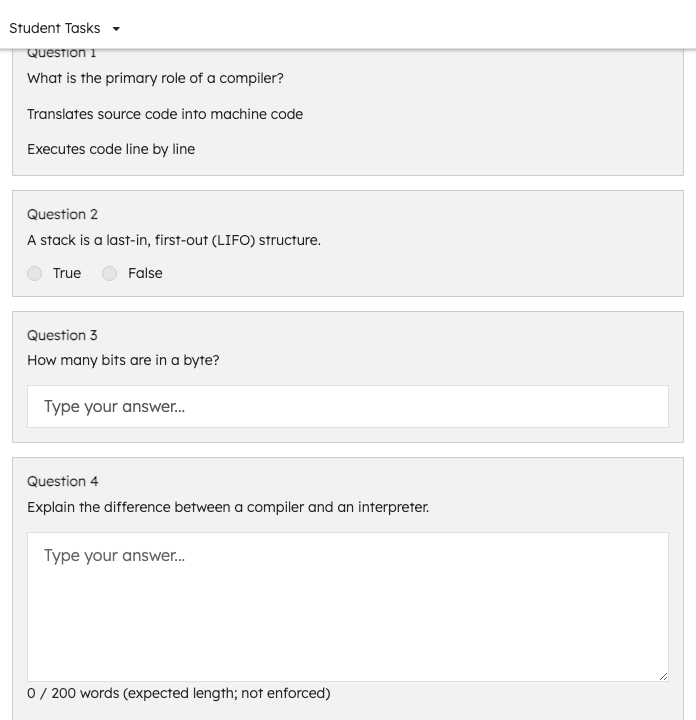
Quizzes appear as a specific kind of assignment. Opening a quiz assignment starts or resumes your attempt and shows every question on one scrolling page.
Before you start
- You must be enrolled in the course.
- The quiz assignment must be available to you (your instructor controls when it's released).
Start or resume
Open the quiz from your assignment link. TeachFront starts a new attempt the first time you open it, or resumes your in-progress attempt — including any answers you already entered — if you left and came back.
Answer questions
Answer questions in any order on the page. As you change an answer, TeachFront saves it automatically a moment after you stop typing or selecting — you'll see a small status next to the question: Saving..., then Saved. If a save fails, it shows Could not save; try re-entering that answer.
Submit
When you're ready, select Submit Quiz. TeachFront asks you to confirm, since you won't be able to change your answers after submitting. Confirm to finish, or choose to keep working if you're not done.
Once submitted, the page shows your responses are locked and gives you a link to view your results.
Related
Troubleshooting
| Situation | What to try |
|---|---|
| Answer shows Could not save | Re-enter that answer; check your connection and try again. |
| Can't change an answer | Once you submit, all answers lock — this is expected. |
| Left and came back | Reopening the quiz resumes your existing attempt with your saved answers, not a new one. |
| Submit Quiz not visible | The quiz was already submitted — look for the results link instead. |