Using course tokens
Overview
Some courses use course tokens — a budget you can spend to do things that would otherwise be blocked, like submitting an assignment after its due date or resubmitting work. You only see tokens in courses where your instructor has turned them on.
Your token balance
Your instructor sets a starting balance and a maximum. Depending on the course, your balance may also refresh over time (for example, a few tokens each week).
You can see your remaining balance in several places:
- Course tokens in the course navigation shows a ticket badge with your current balance (students only).
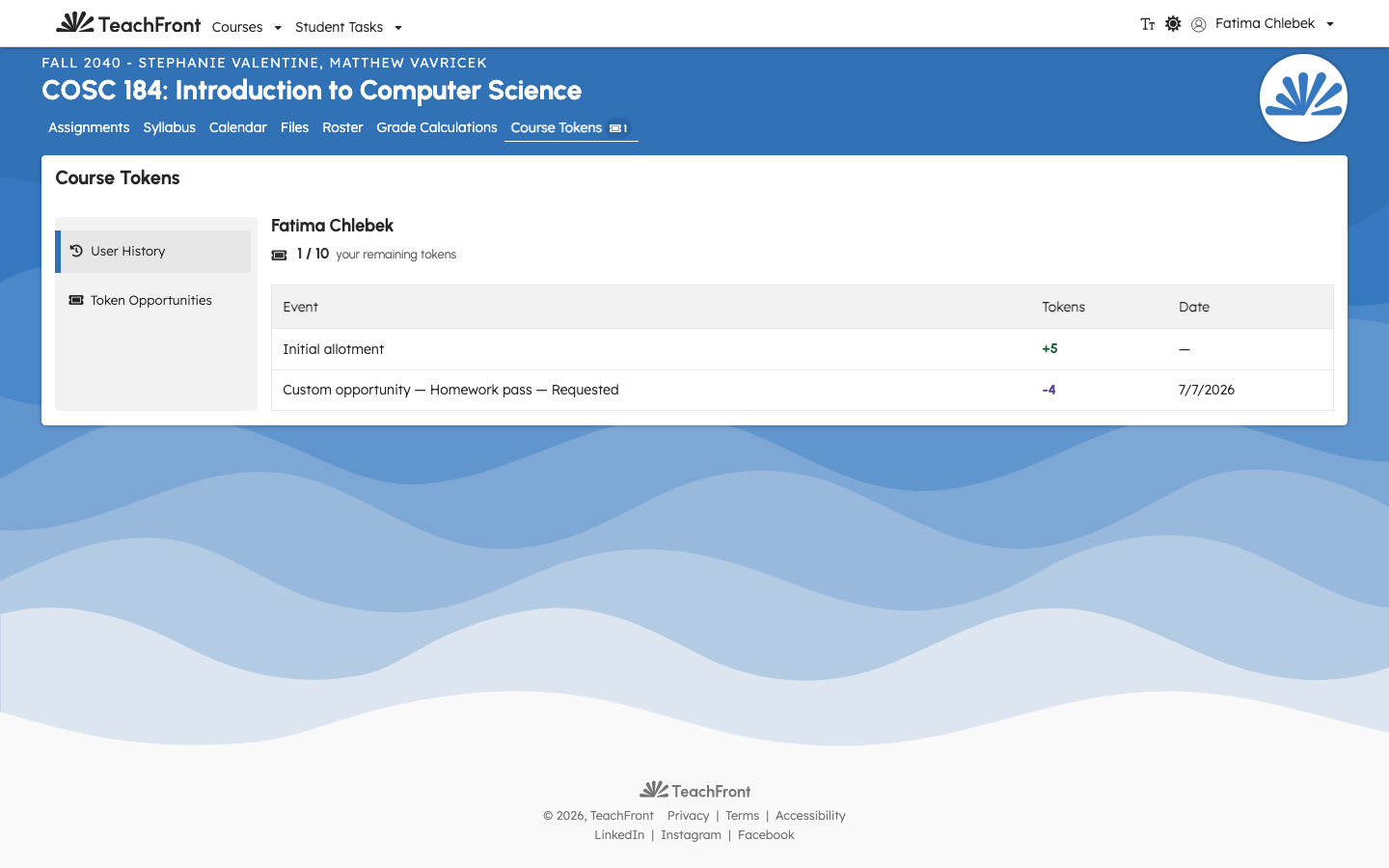
- Course tokens → User History shows your balance and maximum at the top of the page (for example, 2 / 10).
- When you perform a token-gated action, the token panel shows the cost and your remaining balance.
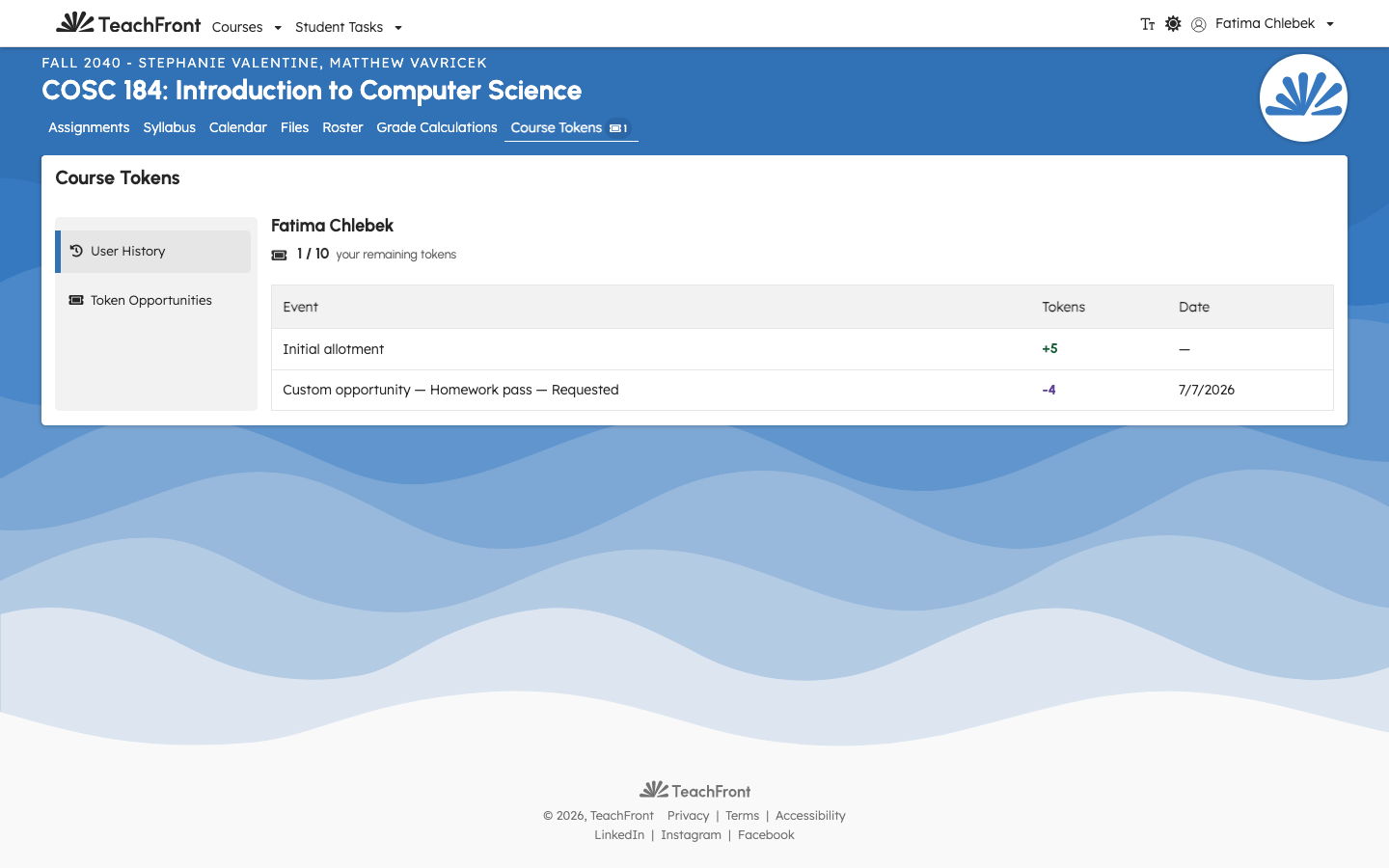
The first row in your history is usually Initial allotment — the starting balance your instructor configured. Activity rows below show spends and any tokens your instructor granted you.
View token opportunities
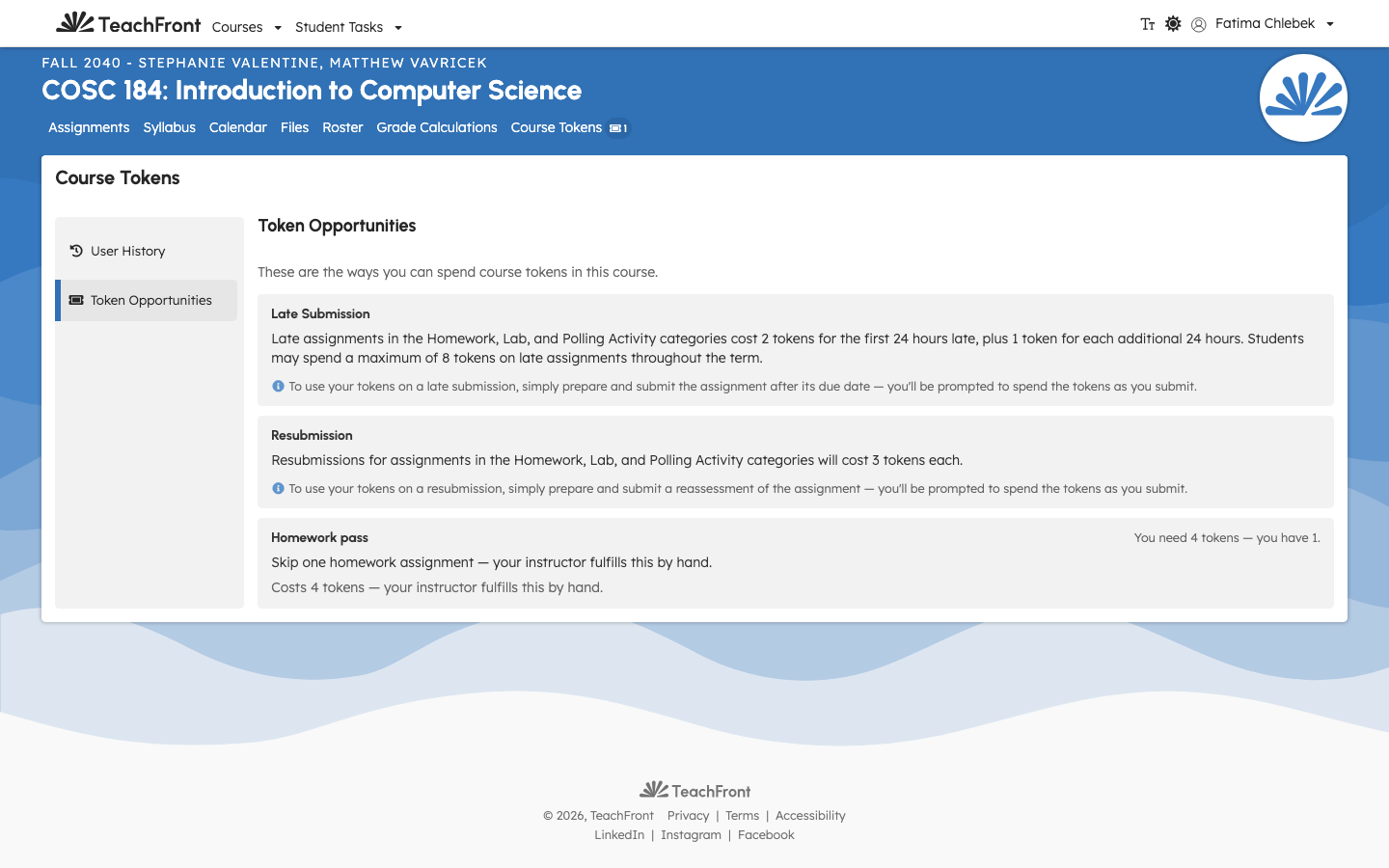
Your instructor configures which actions cost tokens. To read those rules without opening an assignment:
- Open your course.
- Go to Course tokens → Token Opportunities.
The page lists each configured opportunity in plain language (cost, assignment types, and any per-term limits). You cannot edit these rules — contact your instructor if you have questions.
Spend tokens to submit late or resubmit
When an action costs tokens, TeachFront shows a token panel on the assignment before you continue.
- Open the assignment.
- If the action (late submission or resubmission) is gated, you'll see how many tokens it costs and how many you have.
- Choose Spend tokens to unlock the action.
- Complete your submission as usual.
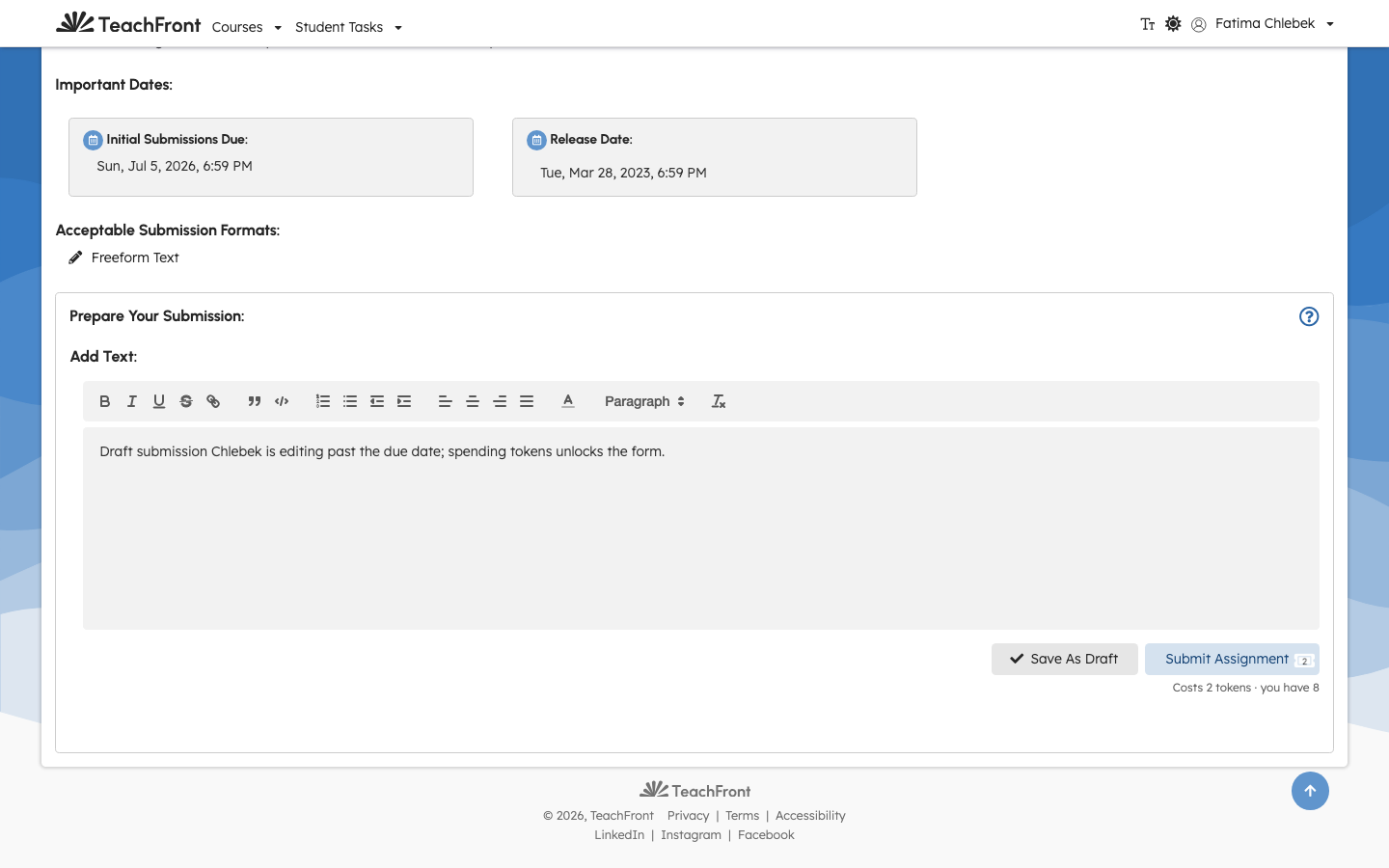
For late submissions, the cost may increase the later you are. The panel always shows the exact cost before you spend.
After you spend once for an assignment action, the panel shows that you have already spent for that action and your updated balance.
Spend tokens on a custom opportunity
Your instructor may offer custom opportunities — rewards they fulfill by hand (for example, a "Homework pass"). These appear alongside the other opportunities on the Token Opportunities page with a Spend tokens button.
- Go to Course tokens → Token Opportunities.
- On the custom opportunity, choose Spend tokens, then confirm the cost.
- Your tokens are spent immediately and a request is sent to your instructor.
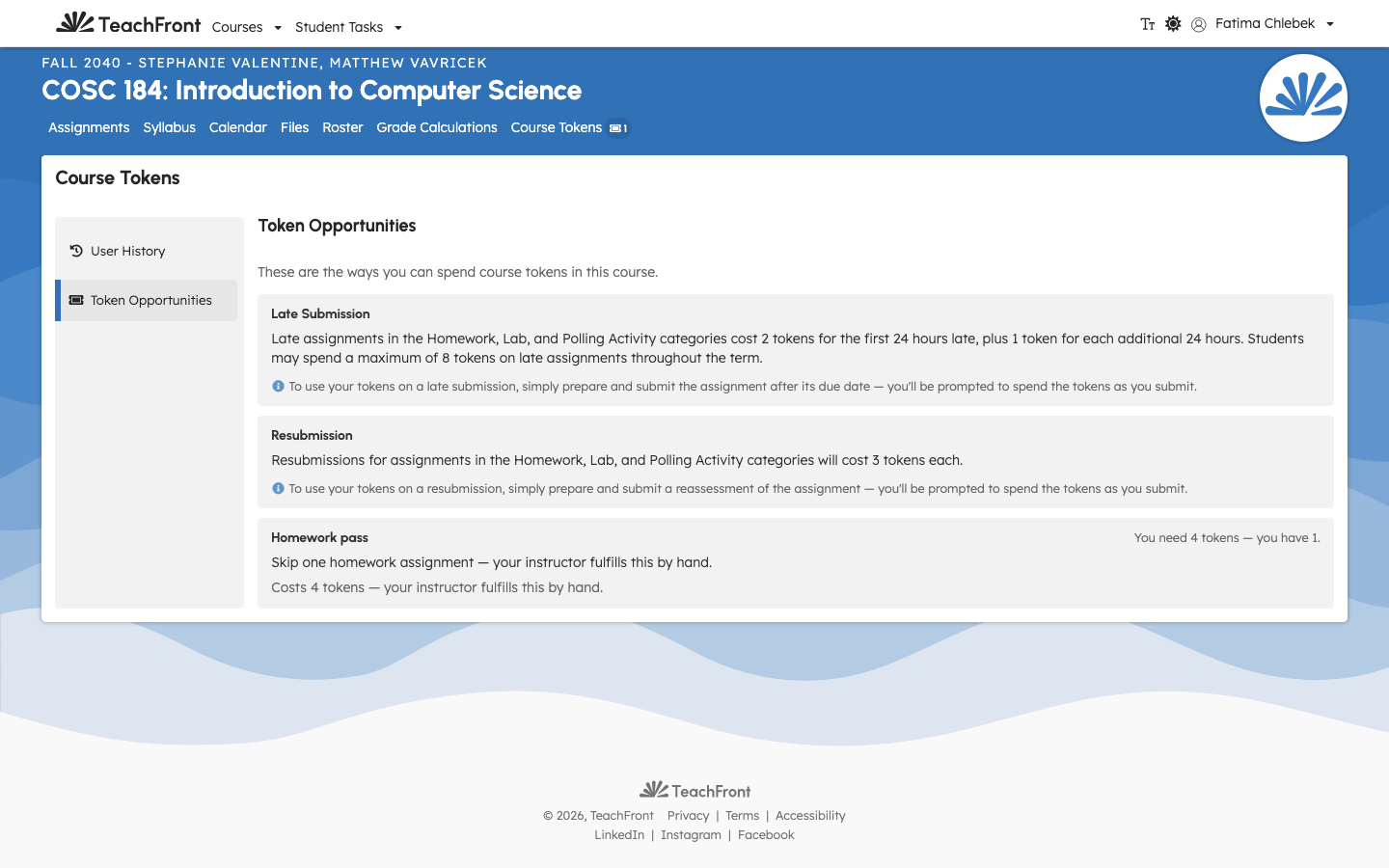
After you spend, you're taken to your User History, where the request appears with a status:
- Requested — your instructor hasn't acted on it yet.
- Fulfilled — your instructor delivered the reward.
- Refunded — your instructor returned the tokens. Your balance goes back up and you can request again.
When you don't have enough tokens
If you don't have enough tokens — or you've hit a per-opportunity maximum or the course's spend limit for the current day/week/month — the panel explains why and the Spend tokens button is unavailable. You may see a message that you need more tokens or that you should wait until the next spend period when a time-period cap applies.
After you spend
Once you've spent tokens for an action, your balance updates immediately in the panel, navigation badge, and history page. If your instructor grants you more tokens, you'll see that live too.
Getting more tokens
Tokens are managed by your instructor. If you're out of tokens, contact your instructor — they can grant more (up to the course maximum) or your balance may refresh on a schedule.
Related
- Course tokens overview (instructor reference for how tokens are configured)